Was this helpful?
Join our Discord community to ask questions, give feedback, or suggest improvements.
Join Discord[ RELATED ]
Join our Discord community to ask questions, give feedback, or suggest improvements.
Join DiscordSynchronize your team's voice communications with demo playback to hear callouts and strategies in context. This feature is exclusive to Private Demos.
Audio sync only works with demos in your Private Demos section, either uploaded manually or synced via HLTV team linking
All audio files and demos you upload are completely private - only team members can access them
There are three ways to synchronize audio with your demos, each with different benefits.
Upload recorded team comms from TeamSpeak or Discord bots like Craig. Best quality with no game audio overlap.
Faster sync without file upload, but includes game audio from the video alongside the demo audio.
Sync team recordings to get both the 2D map view and all player camera perspectives.
For recording team comms, we recommend TeamSpeak's built-in recording or the Craig bot for Discord.
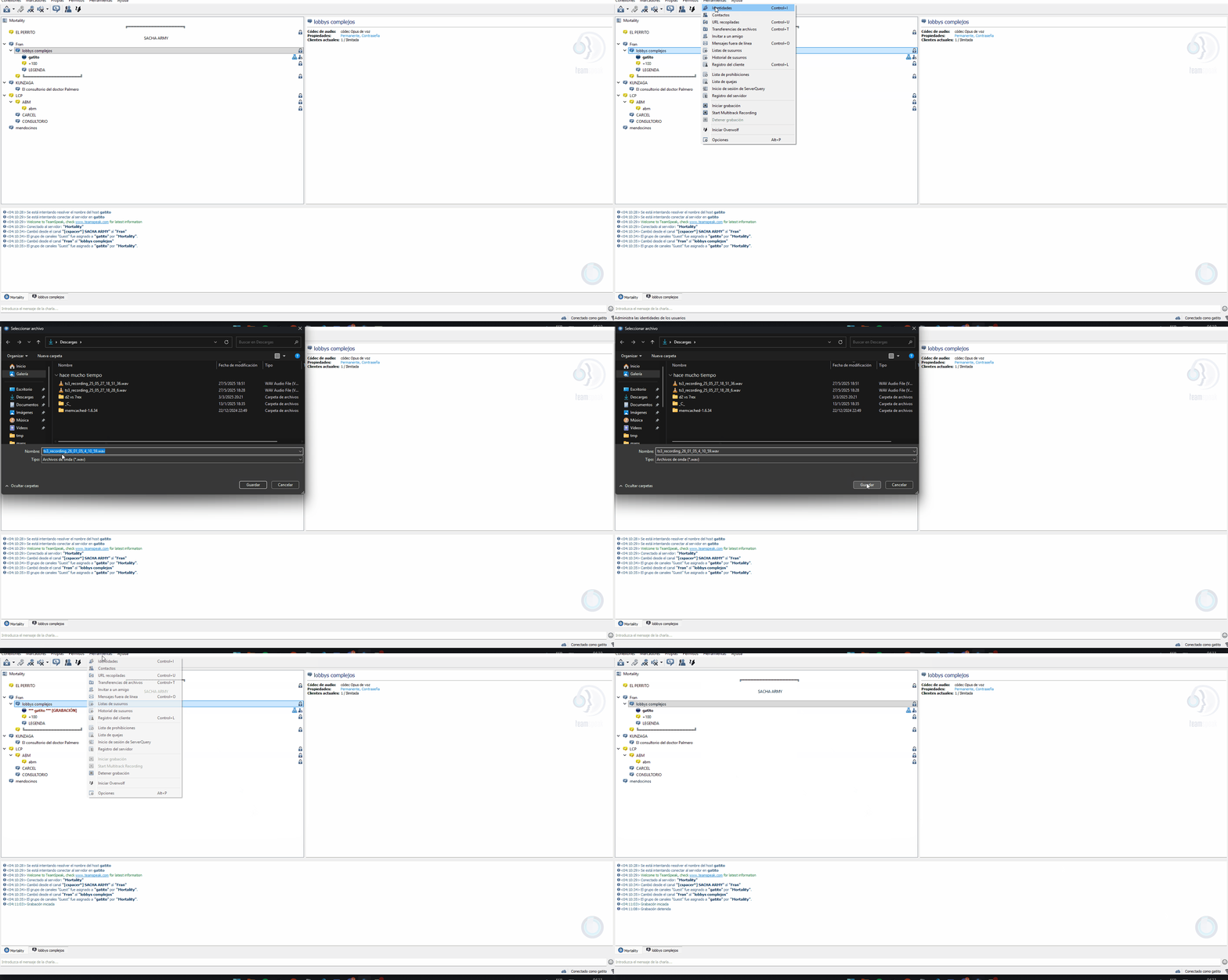
Recording audio with TeamSpeak
To upload audio files, open the demo and click the headphone icon. From there, select the language of the audio you're uploading.
Language selection is important because CS2.CAM uses AI to generate subtitles for the first 5 minutes of audio. These subtitles help with synchronization later.
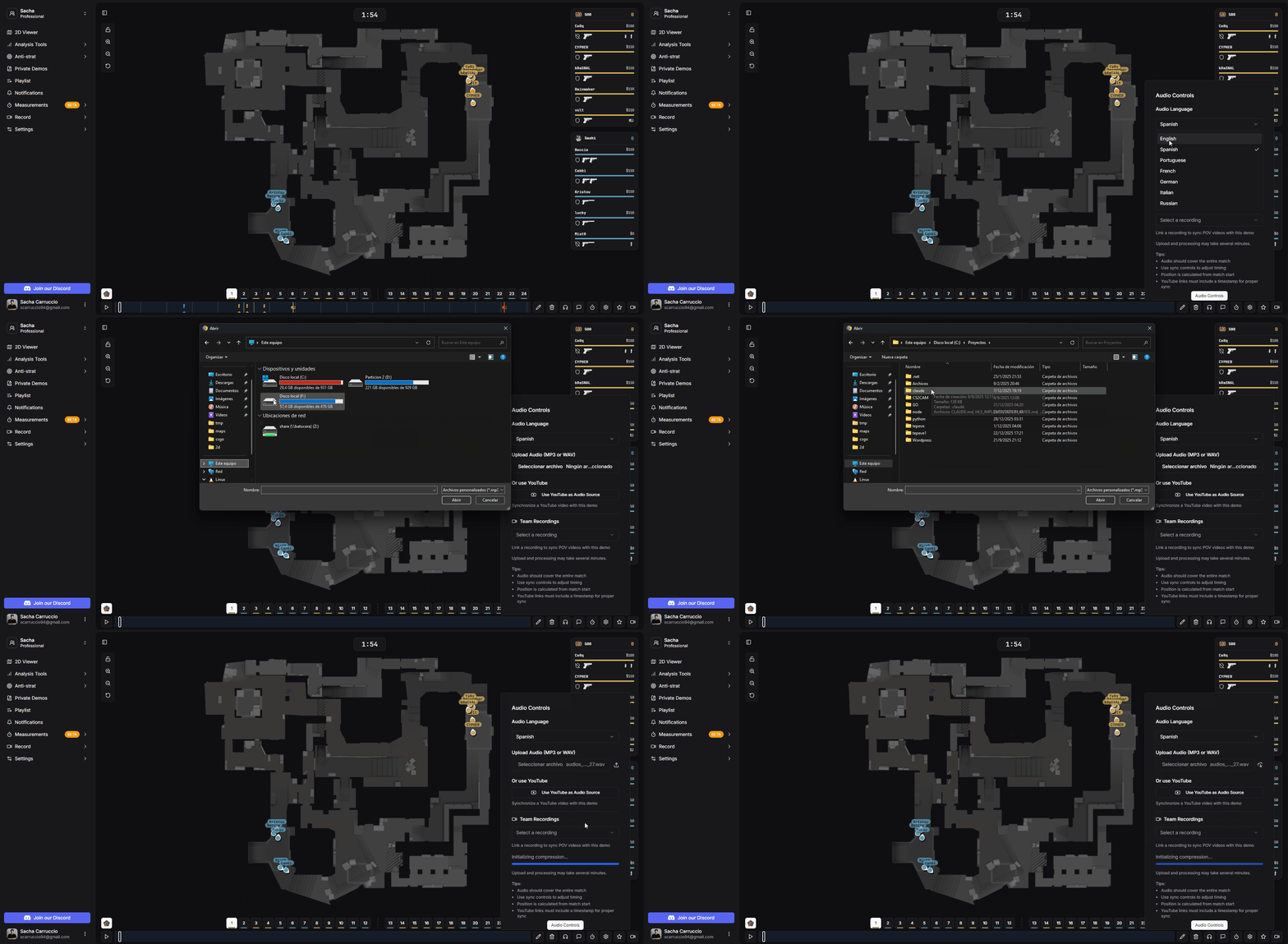
Uploading audio files and selecting language
After uploading audio, you'll need to synchronize it with the demo. The manual method gives you precise control over the timing.
The timeline shows audio waveforms as a visual reference for when people are talking
Use the buttons to shift the audio forward or backward: +10s, +1s, +0.1s and -10s, -1s, -0.1s
Make small adjustments until the audio matches perfectly with the action on screen
Pro tip: Have someone say a keyword at a specific moment during the game (like when the round starts or bomb is planted) to make synchronization easier.
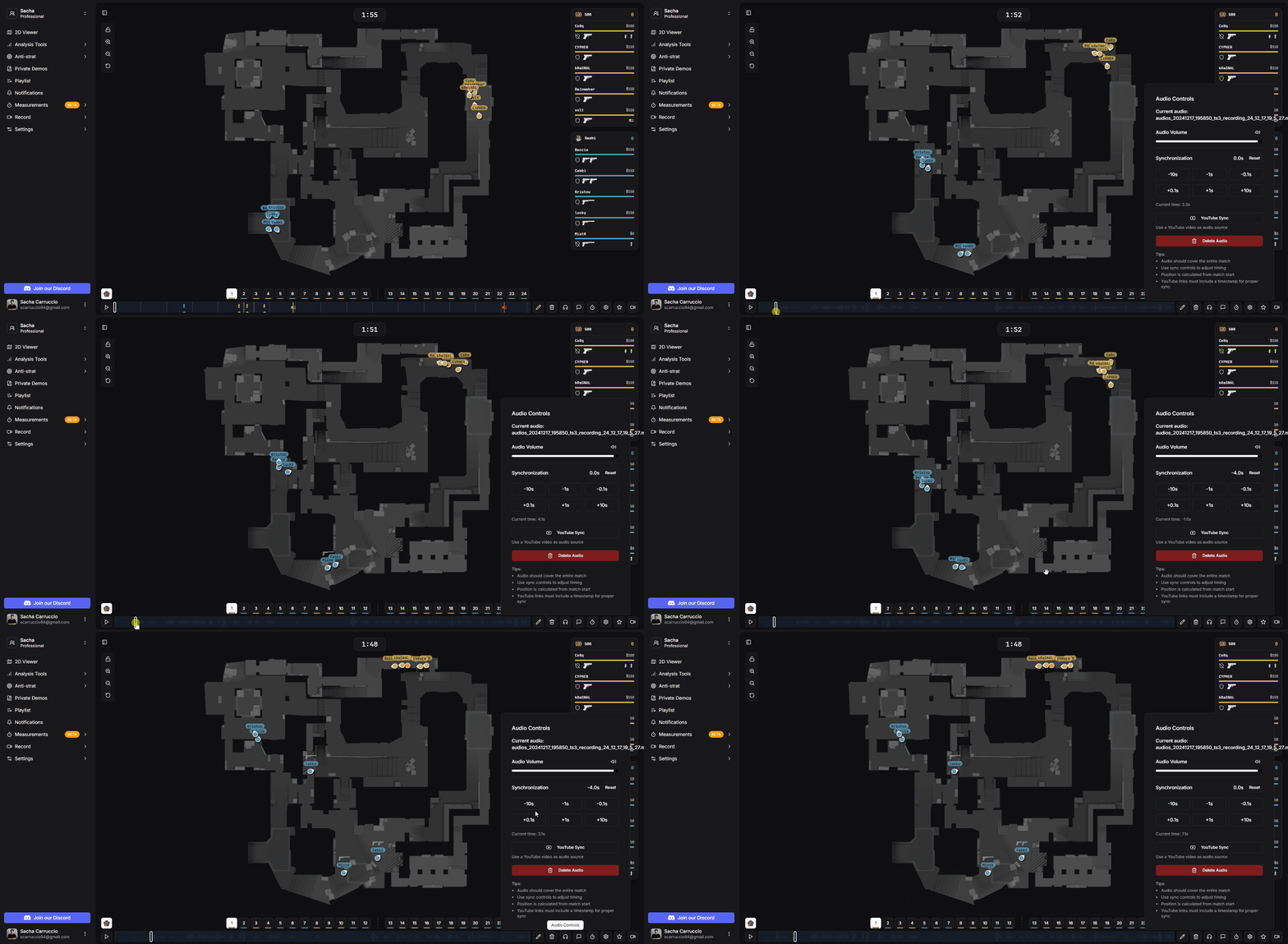
Manual audio synchronization controls
CS2.CAM's AI-generated subtitles make synchronization much faster. This is a unique feature that saves significant time.
Press the K key to open the subtitle panel showing the AI-generated transcription
In the 2D viewer, go to the exact second when a specific phrase was said
Click on the matching phrase in the subtitle panel to automatically align the audio
After clicking a subtitle, you may need to make small fine adjustments to get perfect sync.
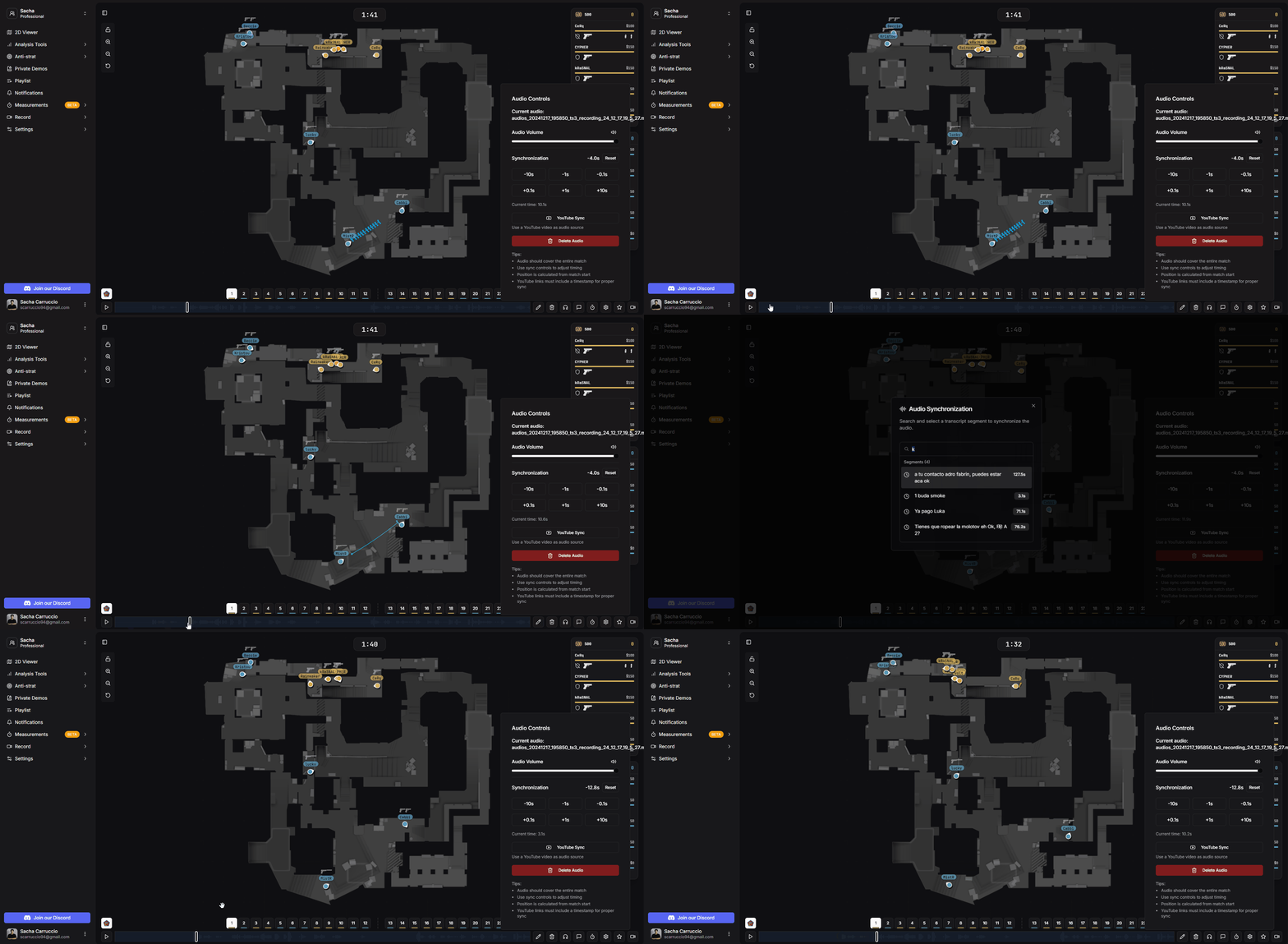
AI-assisted synchronization using subtitles
If you have a YouTube video of the match (like a stream VOD), you can sync it directly without uploading files.
Click the headphone icon and select 'Use YouTube as audio source'
In both the 2D viewer and the YouTube video, go to the same moment in time
Right-click on the YouTube video and select 'Copy video URL at current time', then paste it
After syncing, a red line appears on the timeline showing the sync point. You can make fine adjustments from there.
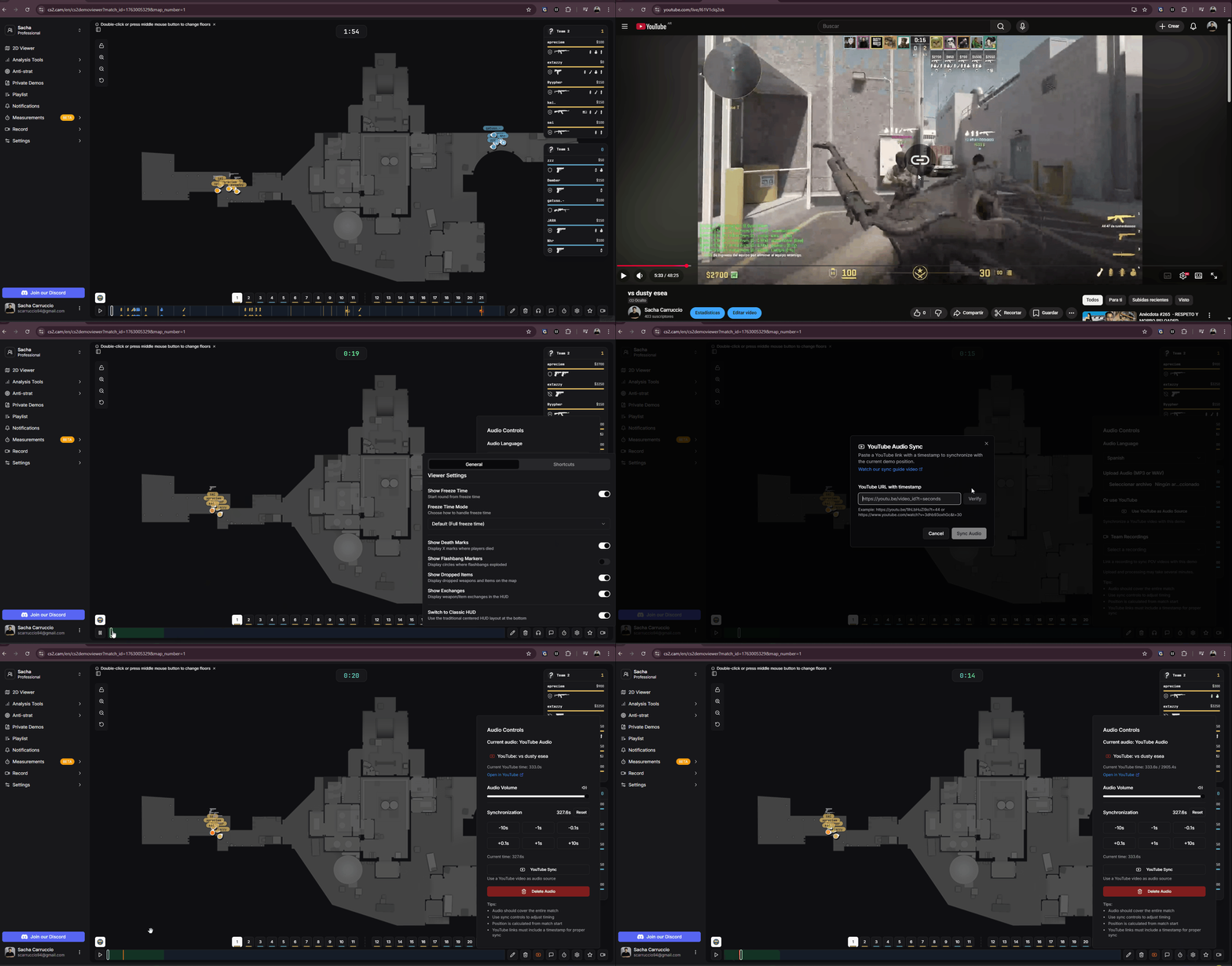
Synchronizing with YouTube video
If you have a team recording, you can sync it to get both the 2D map view and all player camera perspectives.
A panel opens on the left showing all available player cameras. Navigate between the 2D map and individual POVs.
Use the round timer visible in both the VOD and 2D viewer to match the timing precisely
Once synchronized, the sync is saved automatically for the entire match
For more information about team recordings, see the Team Recording article
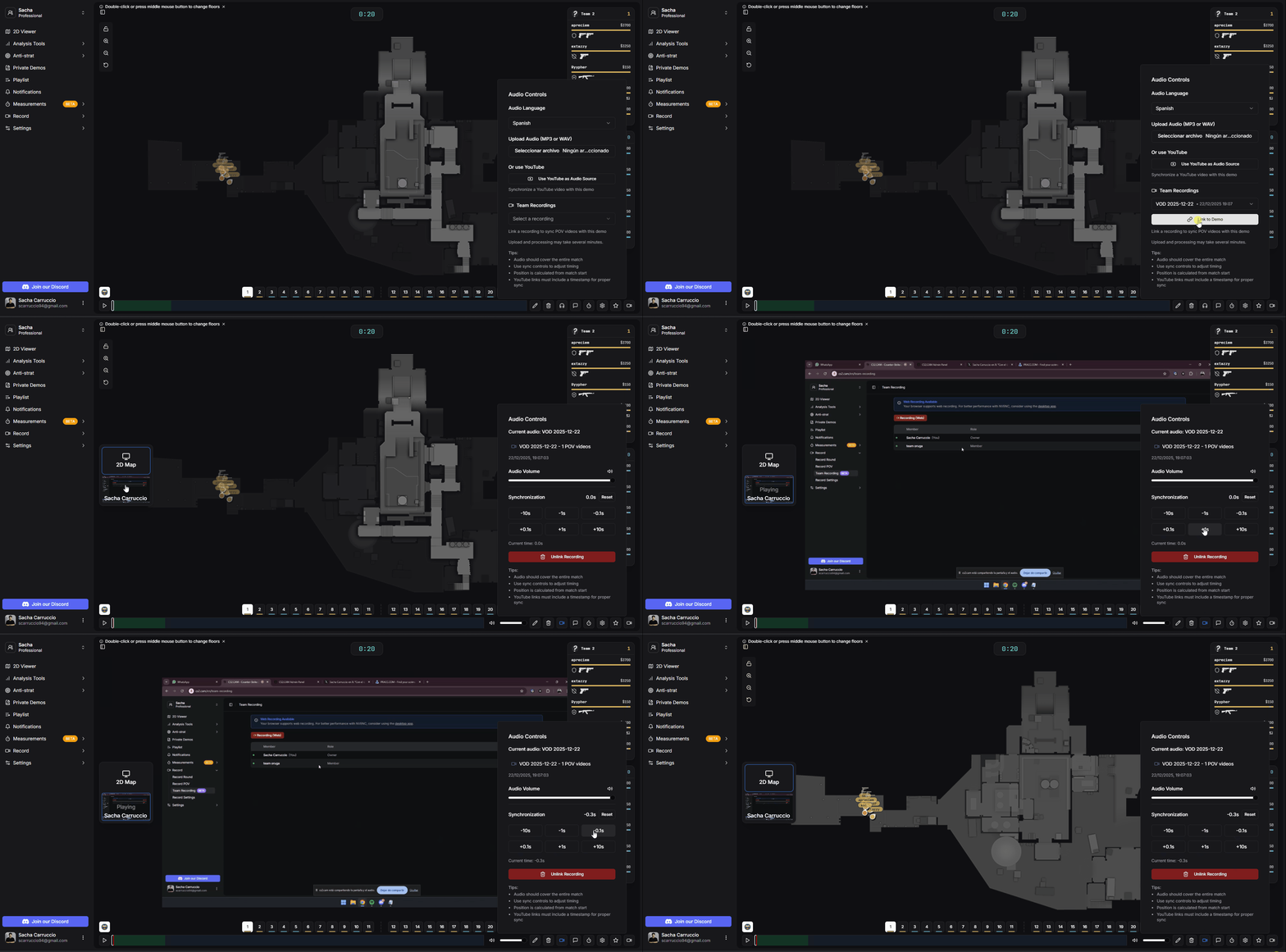
Synchronizing team recording with camera panel
These keyboard shortcuts help you work more efficiently with audio sync.