Was this helpful?
Join our Discord community to ask questions, give feedback, or suggest improvements.
Join Discord[ RELATED ]
Join our Discord community to ask questions, give feedback, or suggest improvements.
Join DiscordDeath Analysis records the death cameras of selected players in a demo so you can analyze their mistakes afterwards. This powerful tool helps identify patterns in deaths and understand what went wrong in each situation.
You can configure what to record: the victim's perspective, the attacker's perspective, or both in the same video. This flexibility allows you to see deaths from multiple angles.
Records only the victim's camera before death. See exactly what the player saw leading up to their death.
Records only the attacker's camera. Useful for analyzing how enemies peek or execute plays against you.
Records both perspectives in sequence - first the victim's view, then the attacker's view. Complete picture of each death situation.
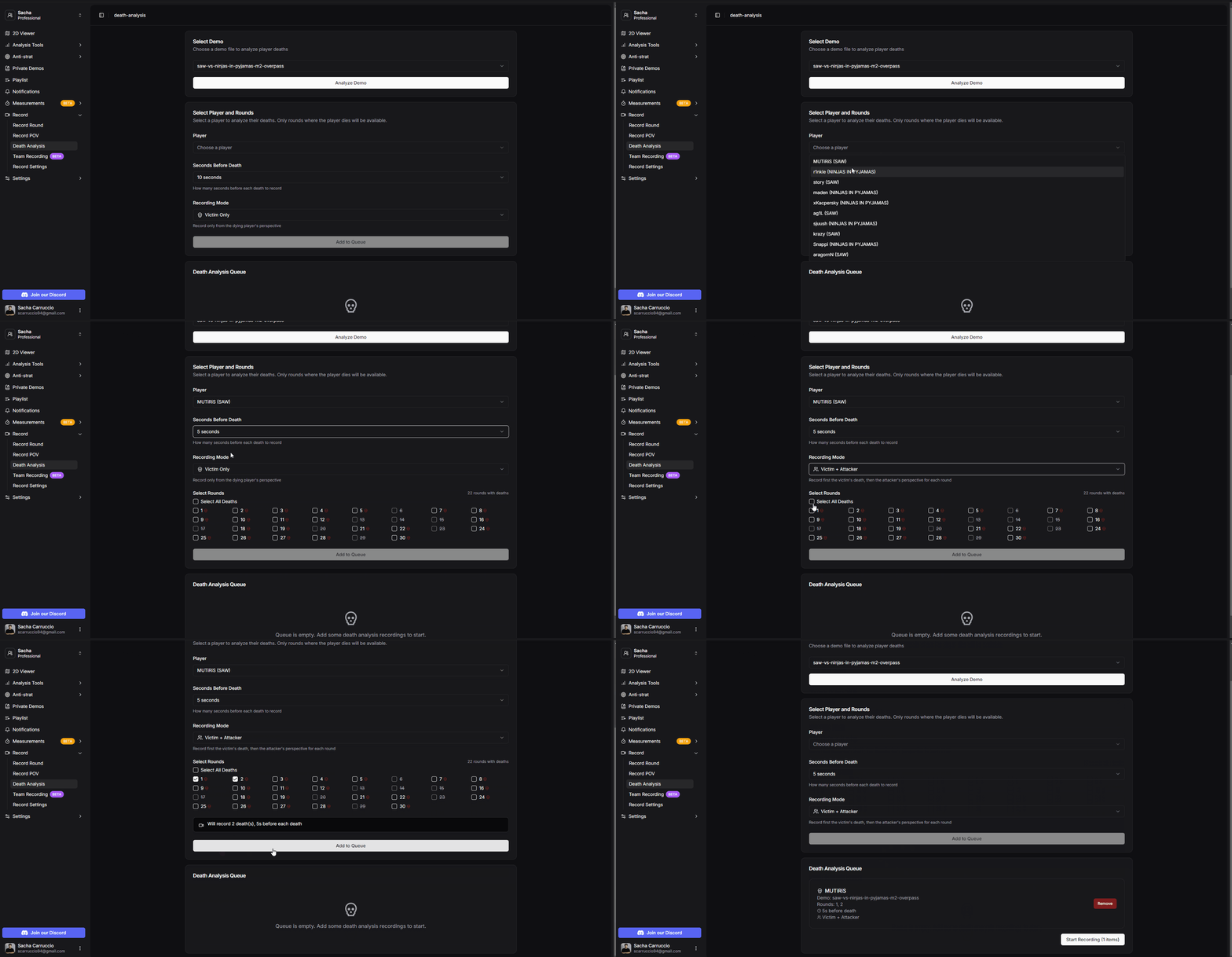
Death Analysis configuration options
This module is ideal for individual coaching sessions and tracking player improvement over time. Coaches can review deaths systematically and identify recurring mistakes.
To automate recordings, CS2.CAM uses the CS2 Workshop Tools to send commands to the game console. This is the only technical requirement before you can start recording.
Launch Steam and navigate to your Library.
Right-click on 'Counter-Strike 2' in your library.
Select 'Properties' from the context menu.
Click on the 'DLC' tab in the properties window.
Check the box for 'Counter-Strike 2 Workshop Tools'. Steam will download them automatically.
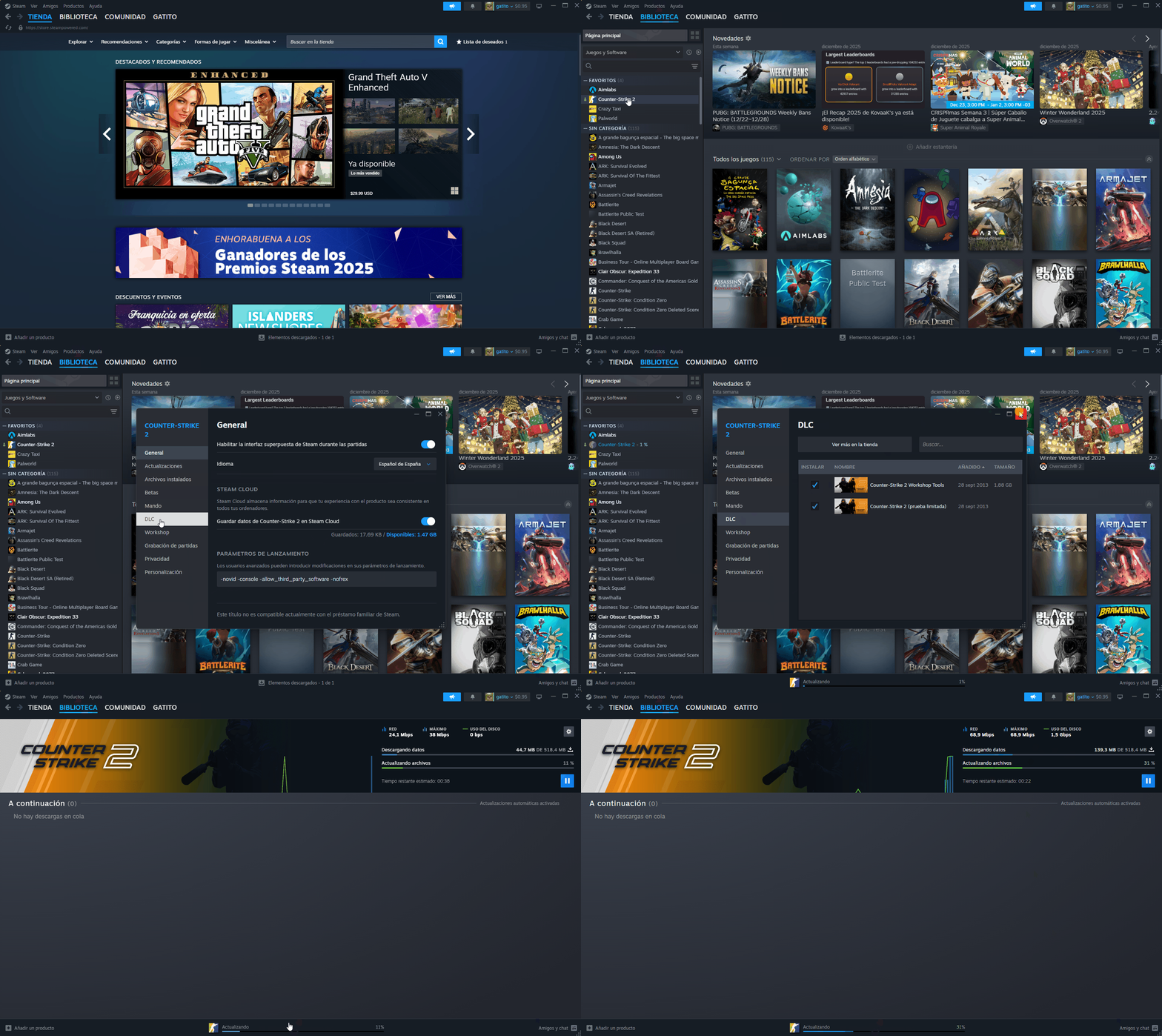
Installing CS2 Workshop Tools from Steam
Need visual help? Watch our video tutorial
That's all you need! If you want to customize OBS settings, check out the Recording Overview
There are two ways to add death analysis recordings to the queue:
While viewing any round in the 2D viewer, click the recording icon in the toolbar. Select the 'Death Analysis' tab, choose a player, configure seconds before death and recording mode, select the rounds where that player dies, and add them directly to the queue.
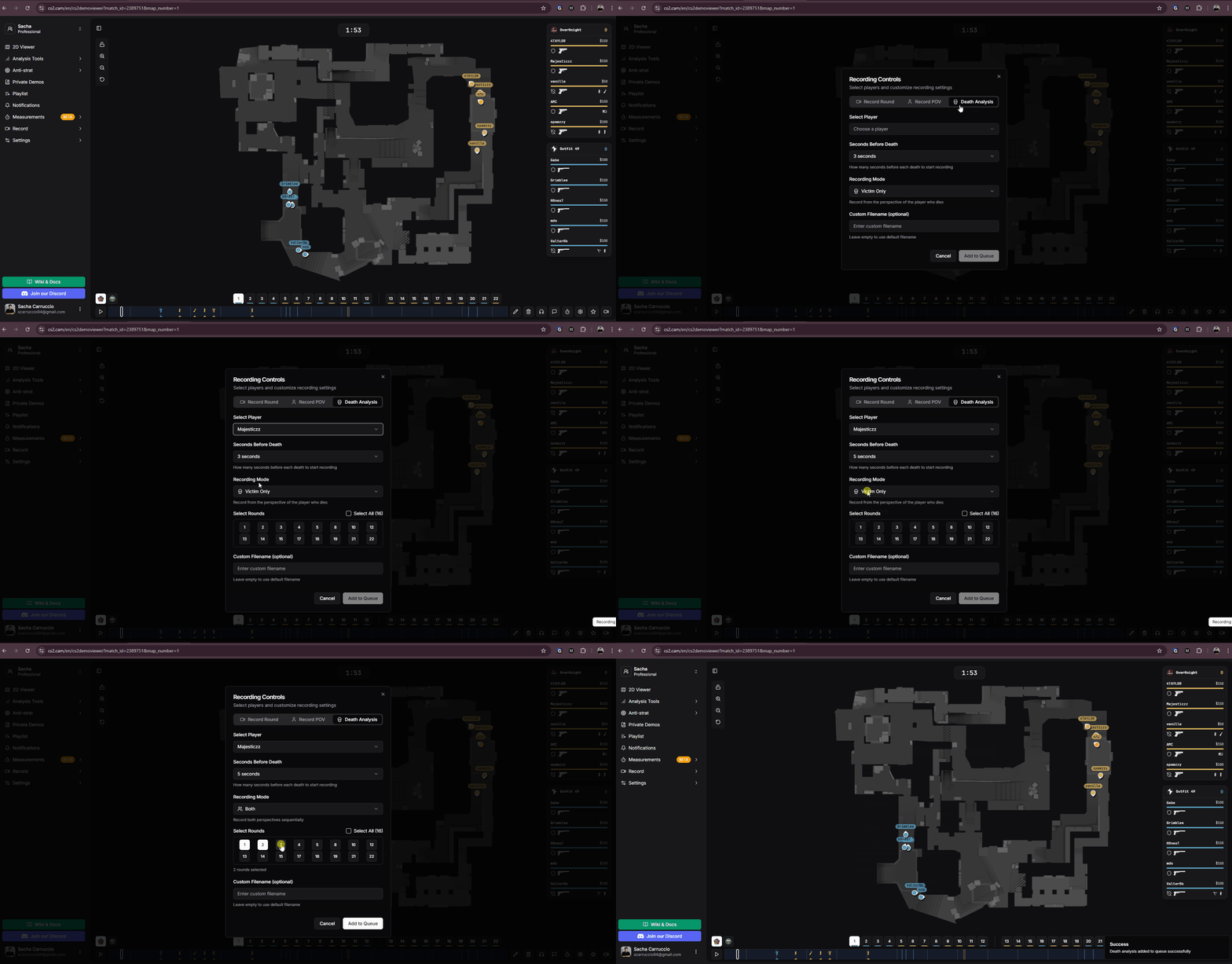
Adding death analysis to queue from the 2D viewer
From the Death Analysis page, analyze demos you've already downloaded. The demo selector shows all demos in your CS2 folder plus any custom folders you've configured. Select a demo, click 'Analyze Demo', then configure your recording options.
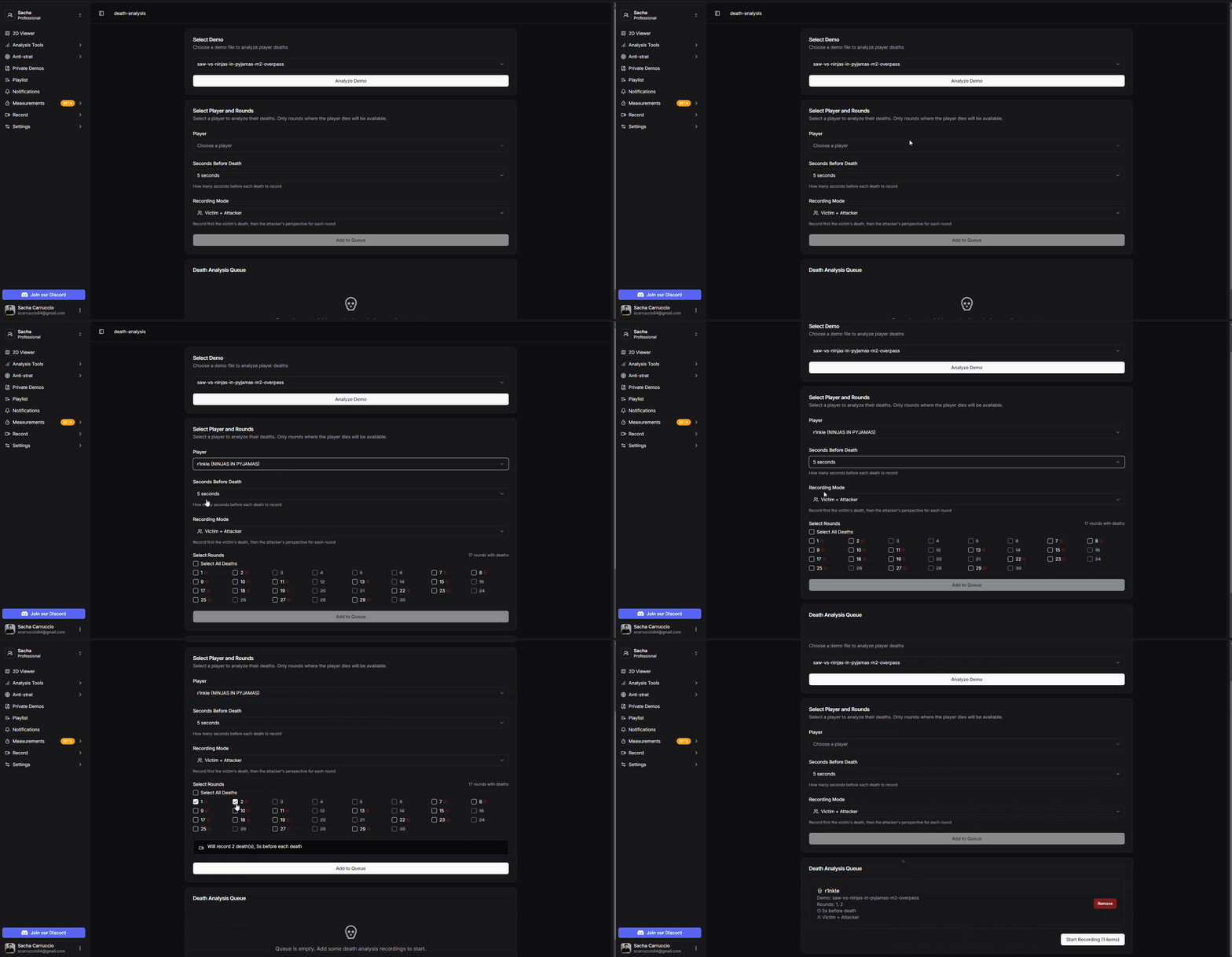
Adding death analysis to queue from the demo analyzer
Select the player whose deaths you want to analyze.
Set how many seconds before each death to start recording. This captures the context leading up to the death.
Choose Victim Only, Attacker Only, or Victim + Attacker to determine which perspectives are recorded.
Once you add a death analysis to the queue, CS2.CAM handles the entire recording process automatically. Here's what happens step by step:
The portable OBS Studio opens with pre-configured settings.
If enabled in settings, the portable HUD overlay is launched.
CS2 opens with the correct launch options. Don't worry - it always launches with -insecure for safety.
The demo file is loaded and navigates to the tick before the player's death.
OBS begins recording the gameplay.
The victim and/or attacker perspectives are recorded for all selected rounds based on your recording mode.
Once all deaths are recorded, OBS stops the recording.
The complete video is saved along with a text file containing timestamps for each death.
CS2, OBS, and the HUD are closed. If there are more items in the queue, the process repeats.
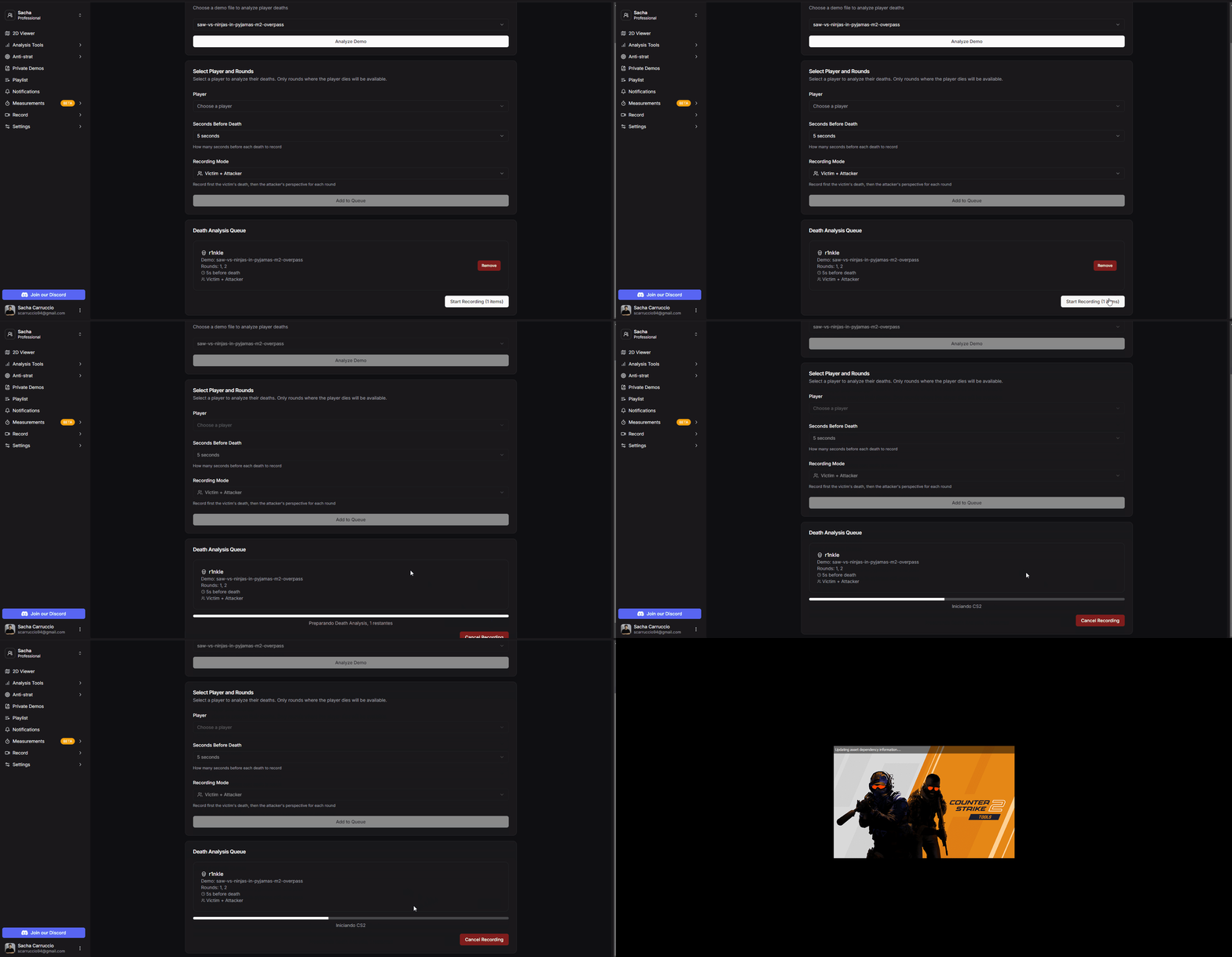
Death analysis recording process preview
Watch the complete death analysis recording process with no cuts:
Full death analysis recording process demonstration
After recording completes, you'll find two files in your output folder:
The complete death analysis recording with all selected perspectives in sequence.
A text file with timestamps for each death, indicating round number, player name, and whether it's the victim or attacker perspective.
Example timestamp file content:
Death Analysis - maden
Demo: saw-vs-ninjas-in-pyjamas-m2-overpass.dem
Seconds before death: 5
Mode: Victim + Attacker
0:00 Round 1 - maden (victim)
0:12 Round 1 - story (attacker)
0:24 Round 2 - maden (victim)
0:36 Round 2 - MUTiRiS (attacker)
This is what the final death analysis video looks like, ready to upload to YouTube or use for coaching:
Final result of a death analysis recording
You can queue multiple death analyses and let CS2.CAM process them all automatically. Perfect for batch analyzing a player's deaths across multiple matches.
Premium users have access to dedicated support to help with any recording issues:
Free technical support through our Discord server for any problems you encounter during the recording process.
Optional one-on-one session where we explain the entire process and teach you how to use all the recording tools effectively.