Was this helpful?
Join our Discord community to ask questions, give feedback, or suggest improvements.
Join Discord[ RELATED ]
Join our Discord community to ask questions, give feedback, or suggest improvements.
Join DiscordCS2.CAM offers powerful recording capabilities that allow you to capture gameplay footage directly from demo files. The desktop application integrates with OBS Studio to provide professional-quality recordings.
There are four recording modes available, each designed for different analysis and content creation needs.
Choose the recording mode that best fits your needs:
Record entire rounds player by player. Select which players to follow and the round will be recorded from their perspective sequentially.
Record the same player across multiple rounds. Perfect for analyzing a specific player's gameplay throughout a match or series.
Analyze deaths by recording the moments before each death. Can record from both victim and attacker perspectives with multiple camera options.
Record practice sessions from all 5 player cameras simultaneously. The only mode available on both web and desktop platforms.
Each recording mode is covered in detail in its dedicated article. Check the Next Steps section for links.
Death Analysis provides four camera perspectives for analyzing each death situation:
Watch the death from the victim's perspective to see what they saw before dying.
See the attacker from the victim's point of view to understand positioning and angles.
Watch from the attacker's perspective to see how they executed the kill.
See the victim from the attacker's point of view to analyze timing and crosshair placement.
The desktop application uses a portable OBS Studio installation that comes pre-configured with optimized profiles for CS2 recording.
OBS comes ready to use with optimized settings. No manual configuration required to start recording.
You can modify settings, add scenes, overlays, or watermarks to personalize your recordings.
OBS was chosen for its excellent performance and adaptability to different hardware configurations.
To configure OBS, go to Record Settings in the sidebar and click the 'Configure OBS Studio' button. This will launch the portable OBS instance.
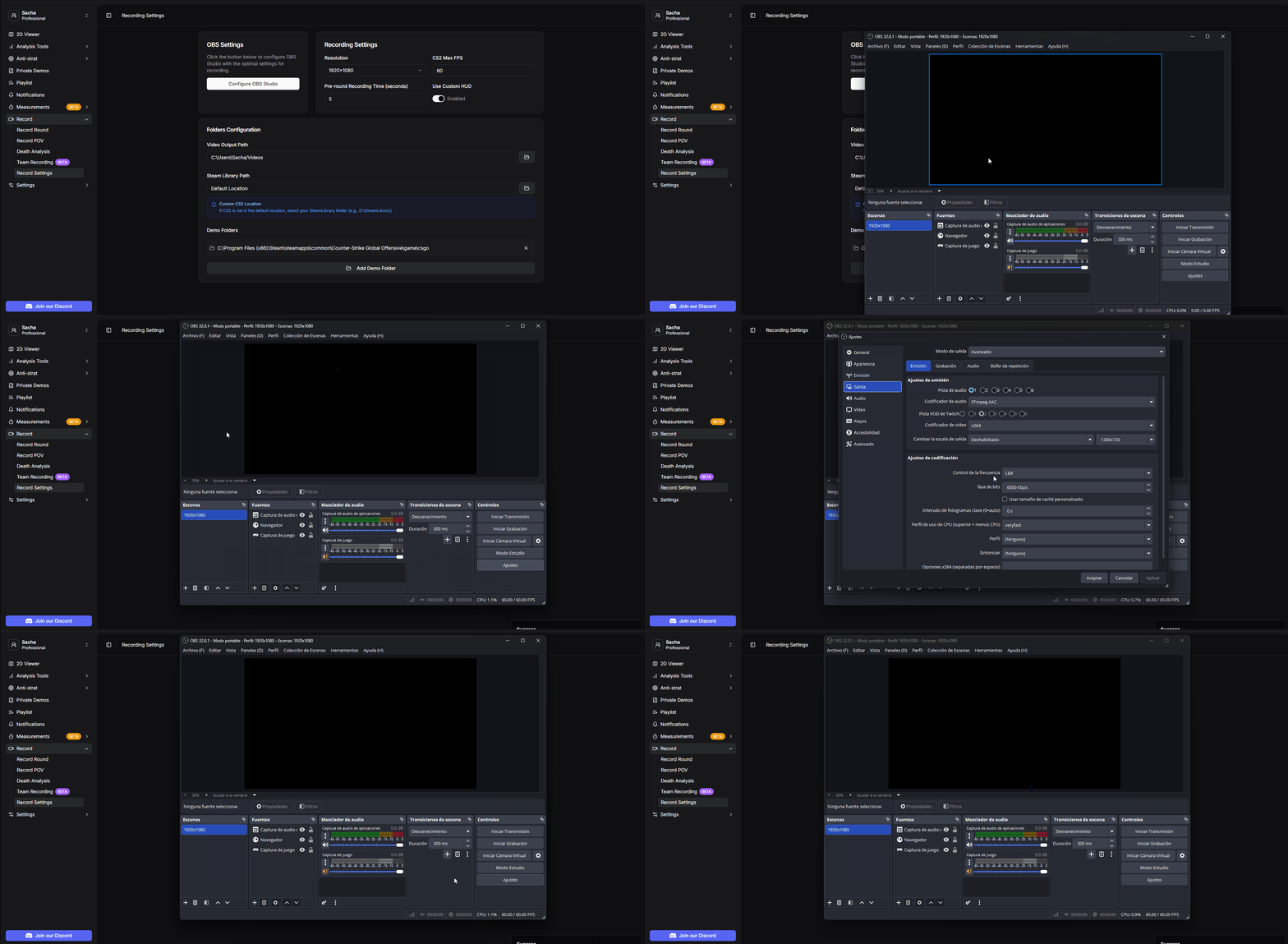
Configuring OBS Studio from Record Settings
Access recording settings from the Record Settings menu in the sidebar to customize your recording preferences.
Set the frames per second for CS2 during recording. Higher FPS provides smoother footage.
Choose the resolution for your recordings. Higher resolution means better quality but larger file sizes.
Enable or disable custom HUD elements during recording for cleaner footage.
Set seconds before round start to capture. This records the freezetime before the action begins.
For example, setting Pre-round Recording Time to 15 seconds will start recording from the 1:55 mark, capturing the freezetime and any early-round setup before the round officially begins. This works for both Record Round and Record POV modes.
Configure where your files are stored using the Folders Configuration section in Record Settings.
Choose where recorded videos are saved. This setting takes priority over any path configured directly in OBS.
If CS2 is not installed in the default location, specify your SteamLibrary folder (e.g., D:\SteamLibrary).
Set a custom location for demo files if you store them outside the default Steam folder.
If CS2 is not in the default location, select your SteamLibrary folder (e.g., D:\SteamLibrary). The application will automatically locate the CS2 installation within that library.
Learn more about each recording mode in their dedicated articles:
Learn how to record entire rounds from multiple player perspectives.
Learn how to follow a single player across multiple rounds.
Learn how to analyze deaths with multiple camera perspectives.
Learn how to record practice sessions with all 5 players simultaneously.