Was this helpful?
Join our Discord community to ask questions, give feedback, or suggest improvements.
Join DiscordJoin our Discord community to ask questions, give feedback, or suggest improvements.
Join DiscordCS2.CAM Teams allow you to collaborate with your teammates for comprehensive match analysis. Create teams, share demos, and work together to improve your gameplay.
To access team management, go to Settings and click on 'Manage Team'. From there you can create new teams, manage existing ones, and configure all team settings.
All team members have access to a shared library of demos, making it easy to analyze matches together.
Create and share playlists of important rounds with your entire team for focused review sessions.
Add notes to specific moments and mention teammates to draw their attention to key plays.
Sync your team's voice communications with demo playback for complete context during review.
Creating a team is simple and takes just a few steps:
Click on your profile icon and navigate to Settings.
In the settings menu, find and click the 'Manage Team' option.
Click 'Create Team', enter your team name, and configure initial settings.
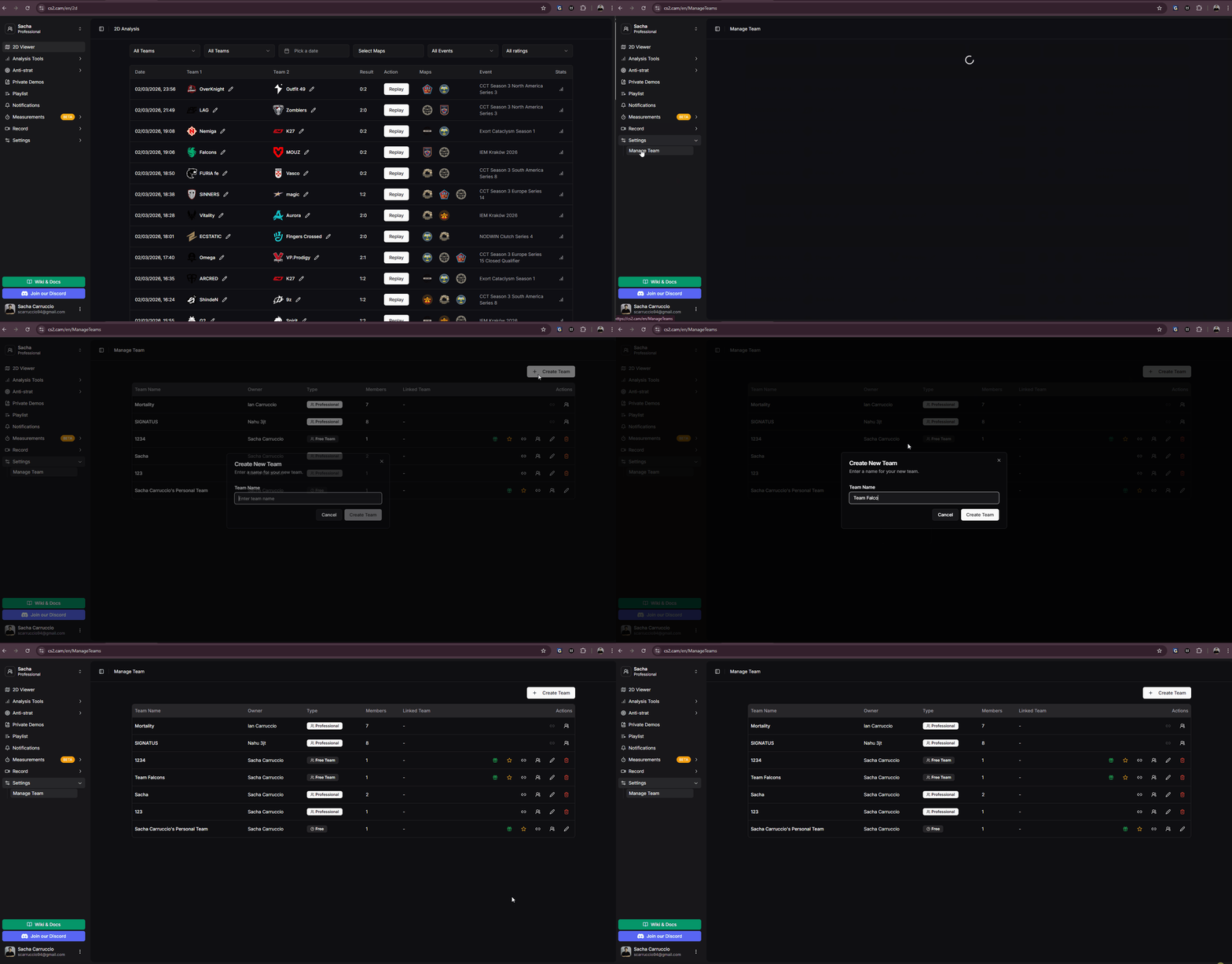
Creating a new team in CS2.CAM
Teams have a role-based permission system that allows you to control what each member can do.
Full control over the team. Can manage billing, delete the team, and perform all actions. There can only be one owner.
Can invite and remove members, manage team settings, and promote members to manager. Cannot delete the team or manage billing.
Can access shared demos, playlists, and participate in team activities. Cannot manage other members.
Add new members to your team by sending them an invite link or adding them directly by email.
Promote members to Manager role to give them additional permissions for team management.
Remove members from the team. Removed members will lose access to all shared team content.
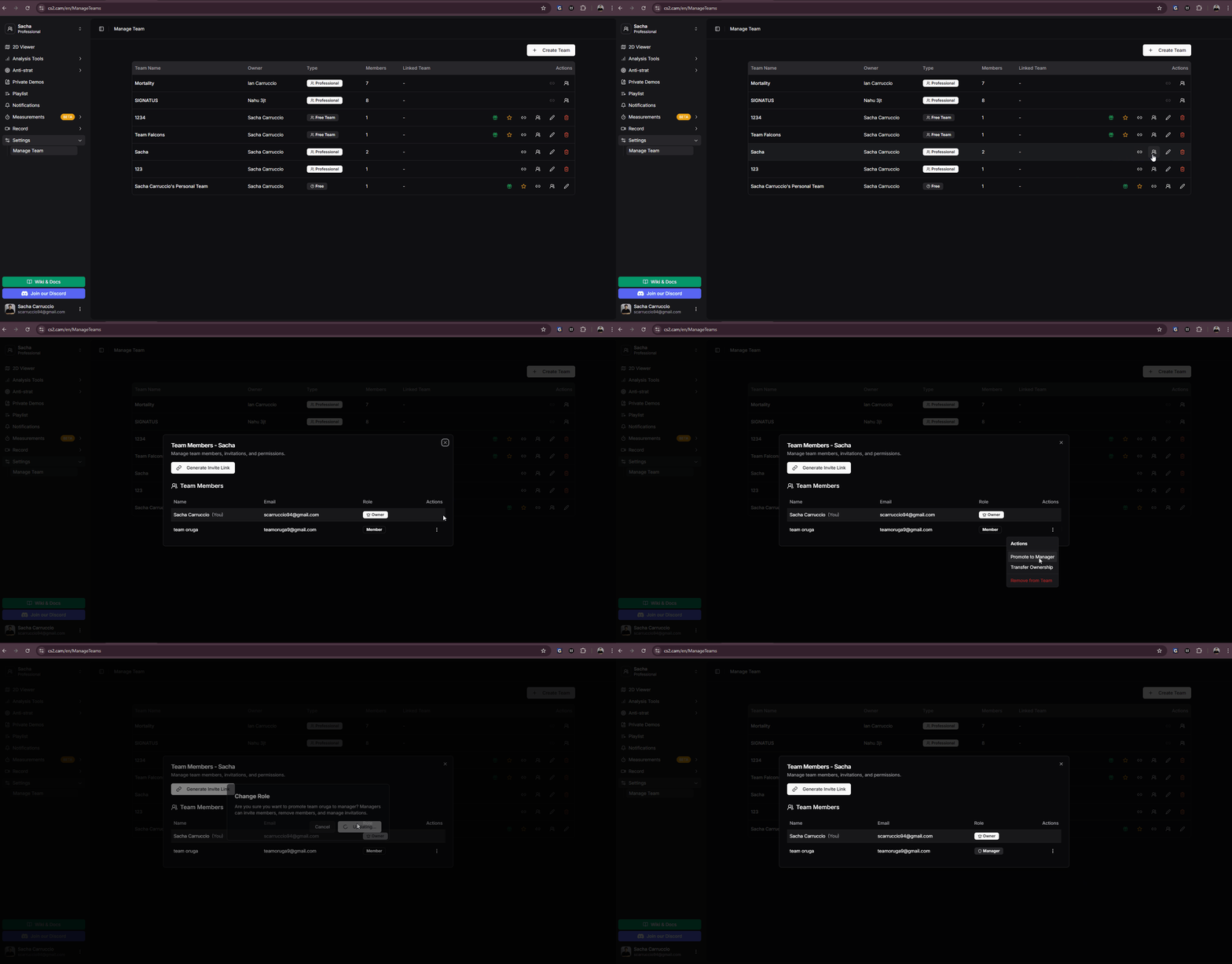
Managing team members in CS2.CAM
Link your team to a public HLTV team to automatically sync team information and access additional features.
When linked to an HLTV team, your team's public matches are automatically available in your demo library.
Team logo, player roster, and other information are automatically imported from HLTV.
To link your team, go to Manage Team settings and look for the HLTV Integration section. Enter your HLTV team URL or ID to establish the connection.
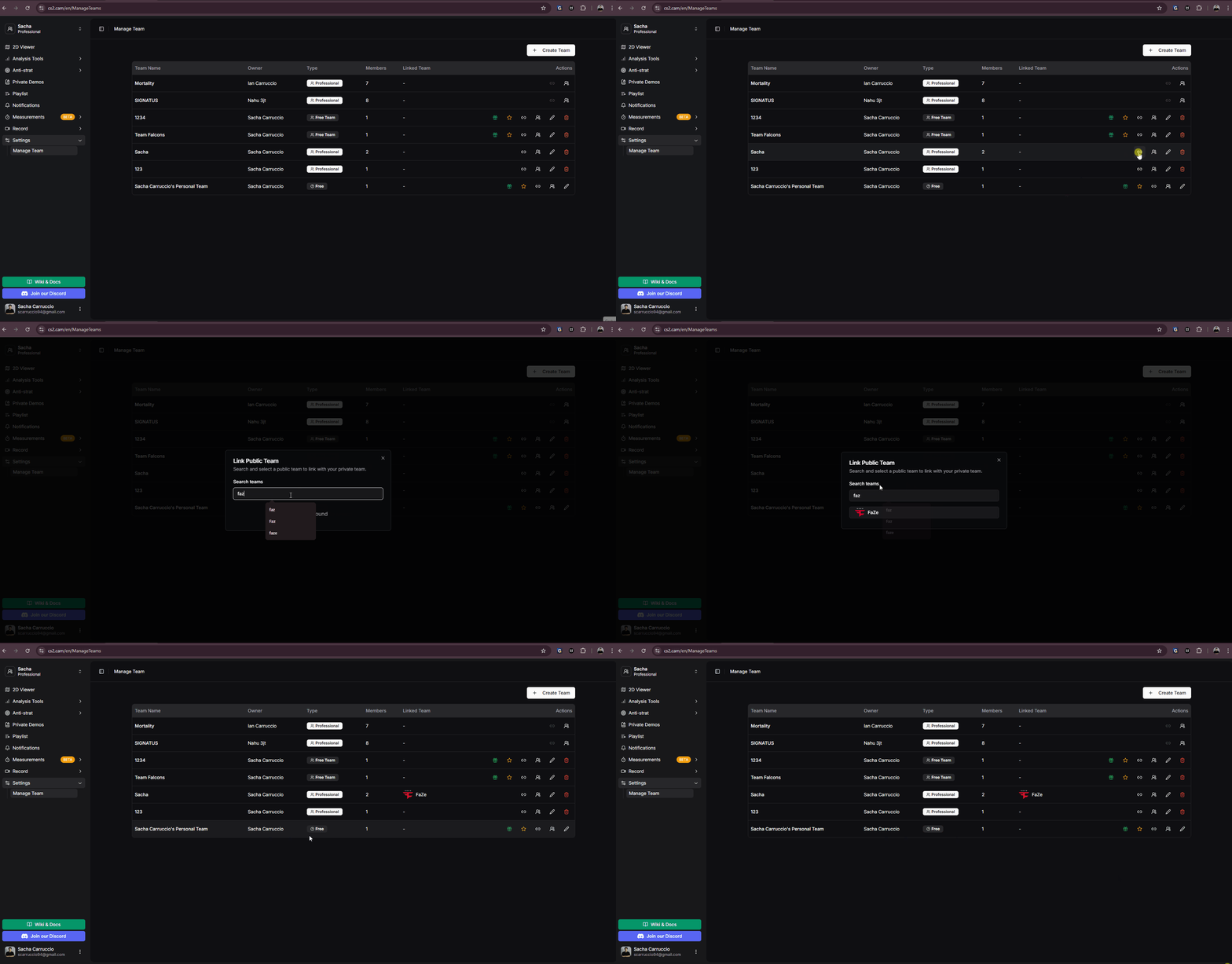
Syncing team with HLTV in CS2.CAM
Generate invite links to easily add new members to your team without manually adding each person.
Create shareable invite links that teammates can use to join your team with one click.
Invite links can be set to expire after a certain time or number of uses for security.
Important: Users must have a registered CS2.CAM account before they can use an invite link. The invite link will not work for users who haven't signed up yet.
Team owners and managers can activate trial codes to give team members temporary access to premium features.
Look for the gift icon in your team management panel. This is where you can enter and activate trial codes.
Enter your trial code and click activate. The trial period will start immediately for all eligible team members.
Trial codes are provided during promotions, partnerships, or special events. Contact our support team if you have questions about obtaining trial codes for your team.