Was this helpful?
Join our Discord community to ask questions, give feedback, or suggest improvements.
Join DiscordJoin our Discord community to ask questions, give feedback, or suggest improvements.
Join DiscordThe CS2 Tactical Board is an interactive strategy planner designed for teams and coaches in Counter-Strike 2. Sketch executes, set positions, place utility, and walk through plans on a clean top-down view of any map.
Use it to design new strategies, brief your team before a match, or adapt setups round to round. The board is built around fast iteration: drag elements onto the map, switch between up to four steps, and save your work to revisit later.
The dock at the bottom of the screen is where every tool lives. Tools are grouped so the most-used controls stay within reach.
Open the Map button to pick from any of the active competitive maps. On multi-level maps like Nuke and Vertigo, the Floor toggle switches between the upper and lower layouts.
The Pencil enables freehand drawing — click it to open a popover with five preset colors and a line-width slider. Rectangle and Circle tools draw shapes (hold Shift to constrain to a perfect square or circle). The Trash icon clears all freehand drawing in one click.
Drag the Note tool onto the map to drop a sticky note. Click the note to edit its text — useful for callouts, role assignments, or timing reminders.
Six grenade types are available: Smoke, Molotov, Flash, HE, Incendiary, and Decoy. Each one renders with its real in-game radius so you can plan utility coverage accurately.
Drag the blue dot to place CT players and the gold dot to place T players. If you have a team configured, hover the player icon to assign a real team member's name to the placed marker. The C4 tool drops the bomb on the map.
Delete Selected removes the active element. Clear All wipes everything from the board. Undo (Ctrl+Z) and Redo (Ctrl+Shift+Z) step through your history — the buttons stay disabled when there is nothing to undo or redo.
The Settings button opens the keyboard shortcuts panel where every dock action can be rebound to your preferred key.
Every placeable element follows the same gesture: press the dock icon, drag it onto the map, and release where you want it. There is no separate "placement mode" to toggle on or off.
The board supports up to four steps so you can lay out an entire execute as a sequence — for example, default setup, smoke deployment, entry, and post-plant.
Switch between Step 1, 2, 3, and 4 using the numbered buttons in the dock. Each grenade, shape, and player position is anchored to the step where you placed it, and the board only shows what is active at the current step.
When a player exists on a step greater than 1, the Draw Path button appears. Click on the map to drop waypoints between the player's previous position and their current one — the board renders the route automatically. Clear Path removes all waypoints for the current transition.
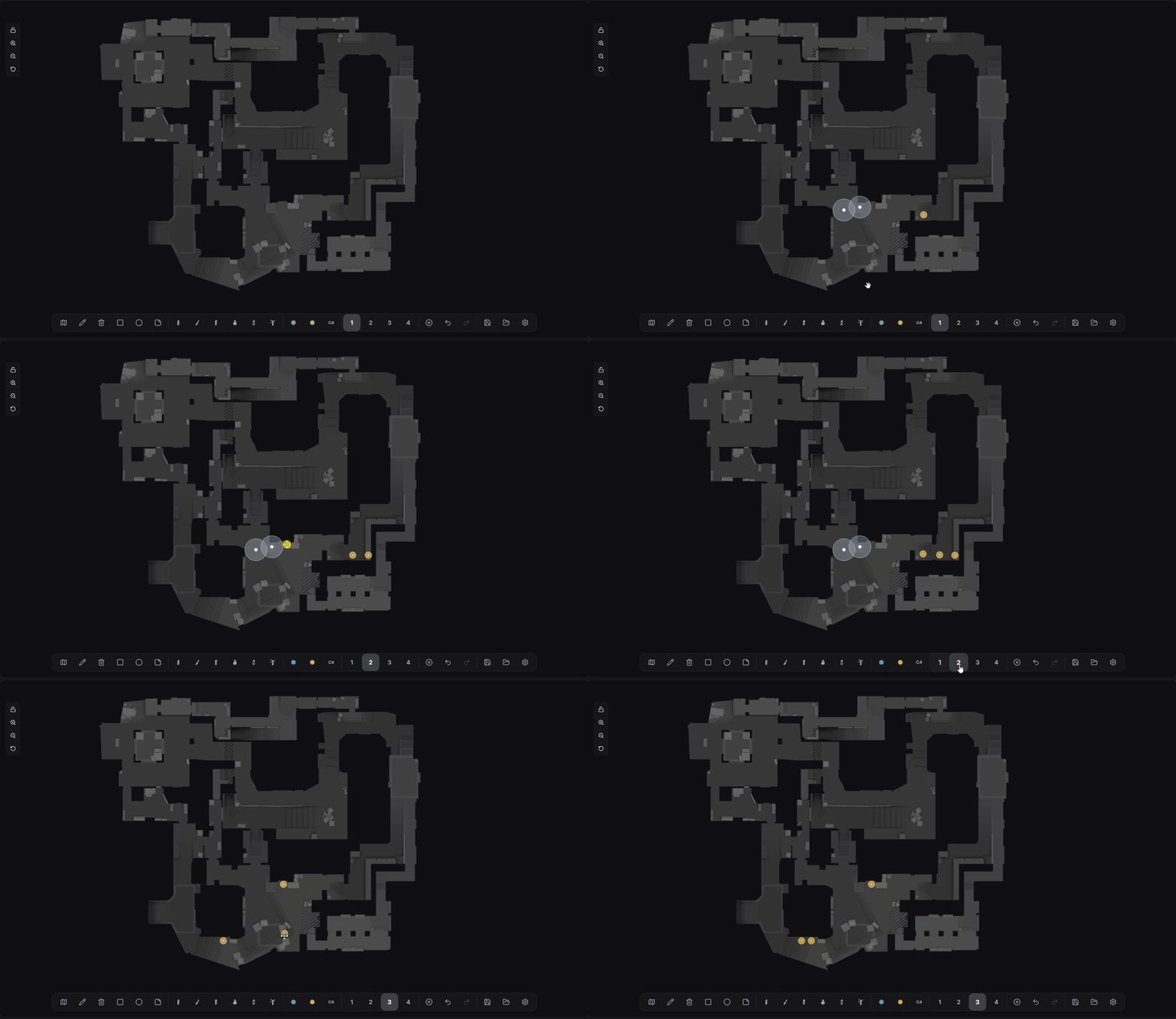
Building a four-step tactic sequence on the Strategic Board
Tactics are stored against your team so any teammate can load them. The Save and Load buttons in the dock are only visible when you are signed in.
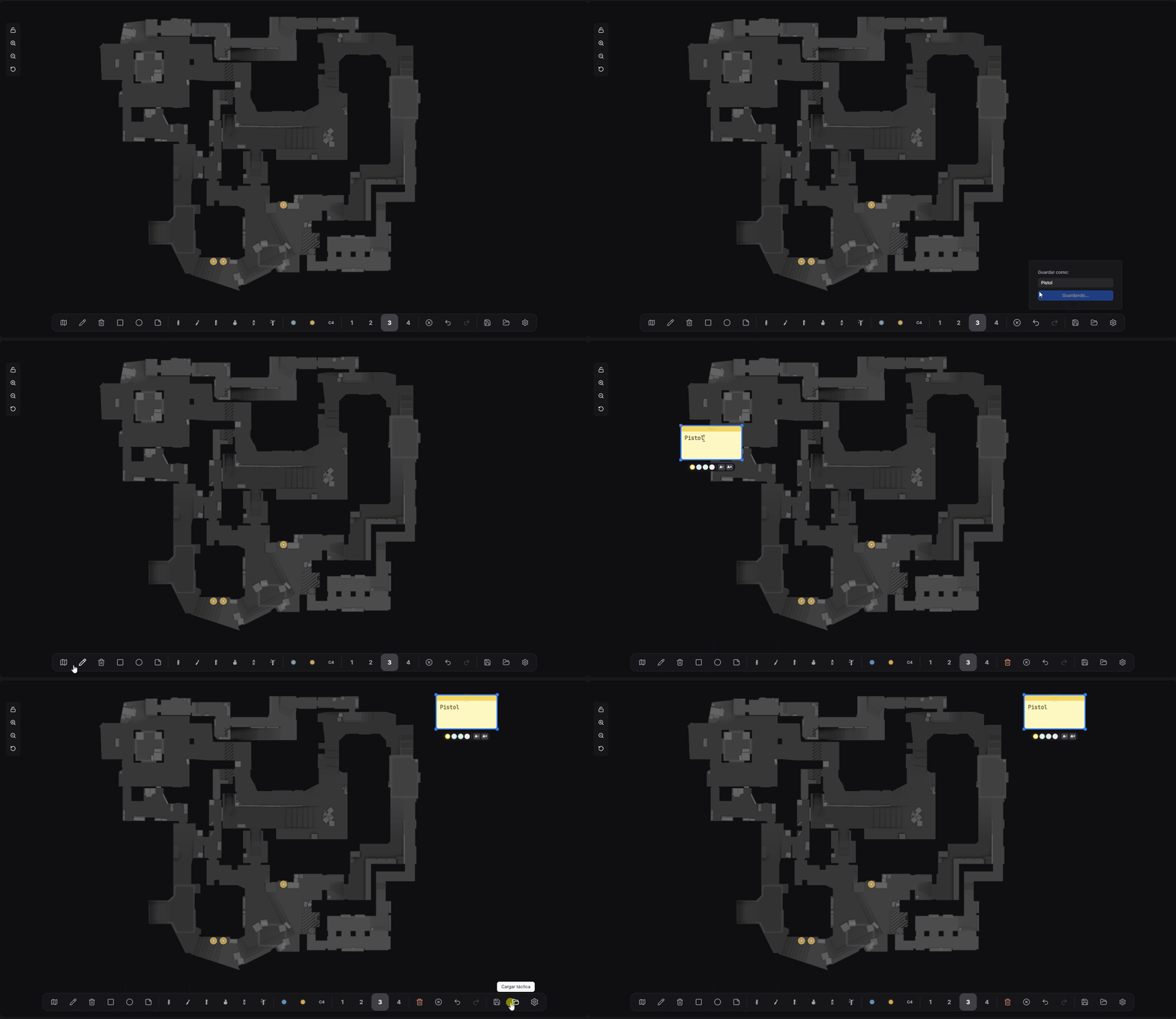
Saving, updating, and loading tactics from the Strategic Board
If you spot an interesting moment while watching a demo in the 2D viewer, you can snapshot that frame and bring every player position and live grenade straight into the Strategic Board.
The board picks up the map, the floor, every player marker (with team and name preserved), and any utility currently on the ground. Everything lands on Step 1, ready for you to extend into a multi-step plan or annotate around the original setup.
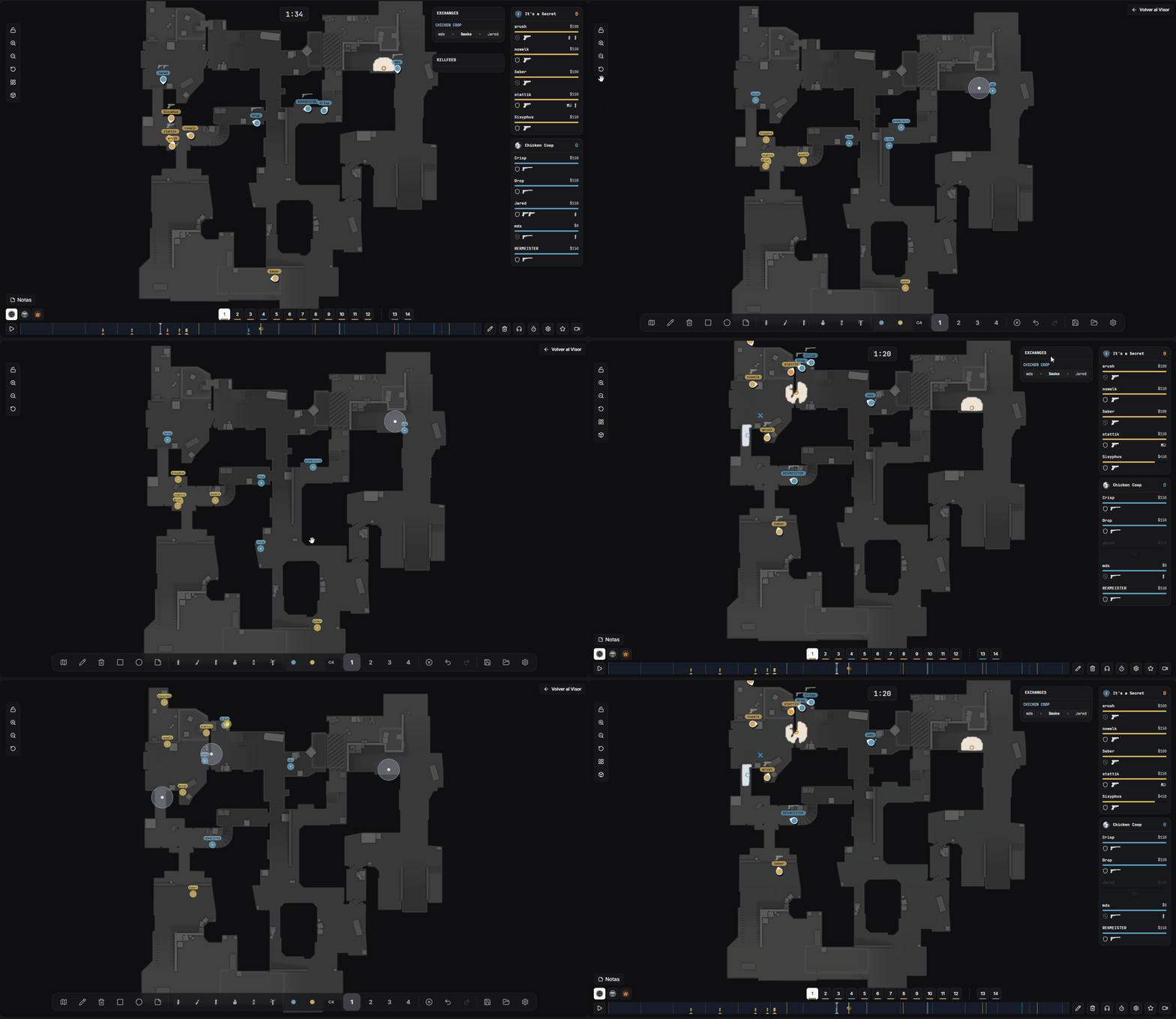
Importing a snapshot from the 2D viewer into the Strategic Board