Was this helpful?
Join our Discord community to ask questions, give feedback, or suggest improvements.
Join Discord[ RELATED ]
Join our Discord community to ask questions, give feedback, or suggest improvements.
Join DiscordThe 2D viewer provides a top-down perspective of the map with comprehensive playback controls and analysis tools.
At the bottom of the screen, you'll find the round and map selector, allowing you to quickly navigate between different rounds and maps. Below that is the timeline bar with the toolbox containing all the viewer's features and functionalities.
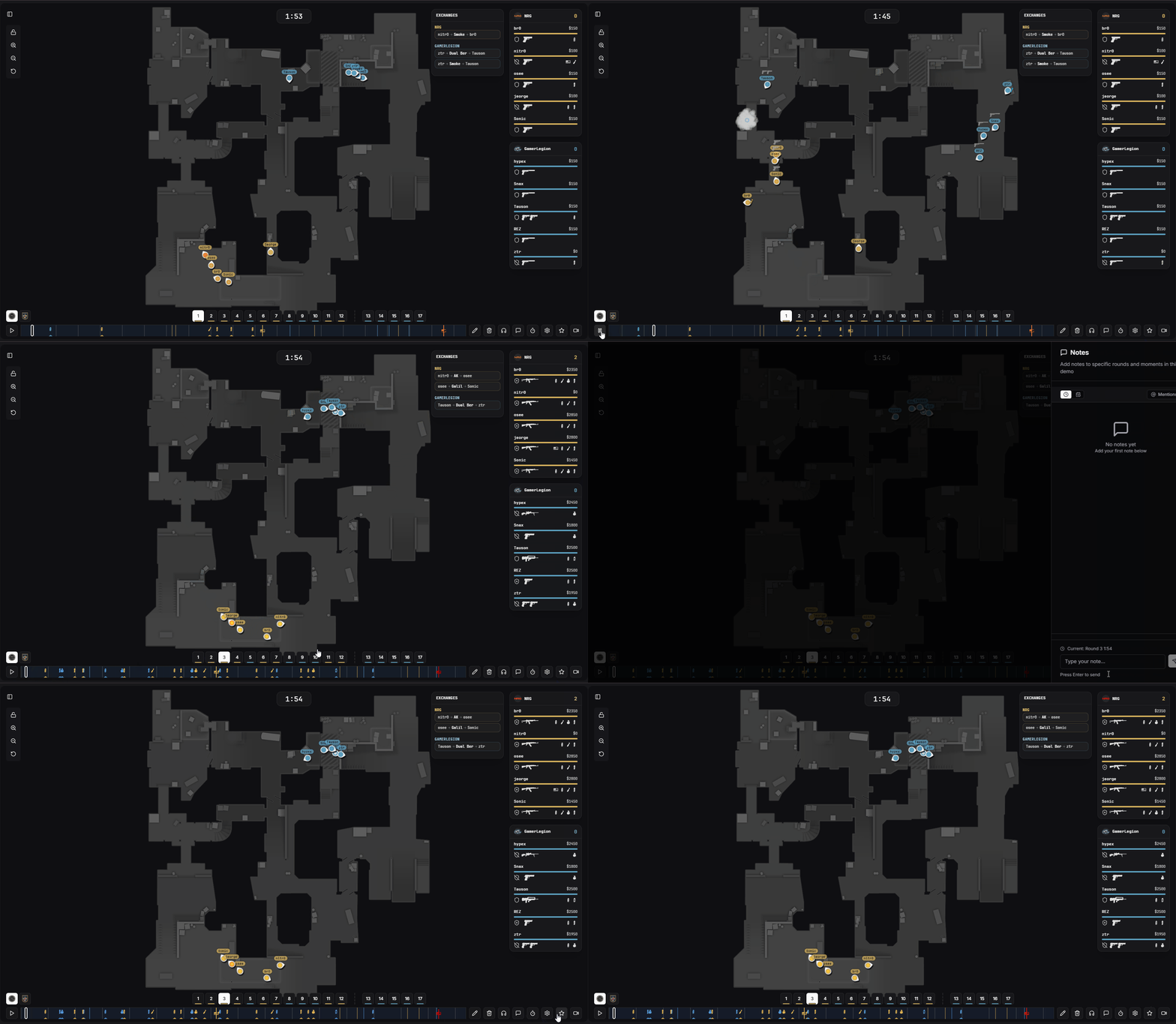
2D viewer interface with timeline and toolbox
The vertical control panel on the left edge of the viewer holds the viewport tools — pan/zoom controls plus shortcuts to the Tactical Board and the 3D mode.
Freeze panning and zooming. The viewport auto-locks when you enter a manual drawing mode so your strokes don't drift.
Step the zoom level up.
Step the zoom level down.
Re-center the map and restore the default zoom.
Open the interactive Strategic Board to sketch tactics on top of the current map.
Replay the round in a 3D perspective view, then toggle back to 2D at any time.
Click the Tactical Board icon to open the Strategic Board on top of the current map. Available on all paid plans.
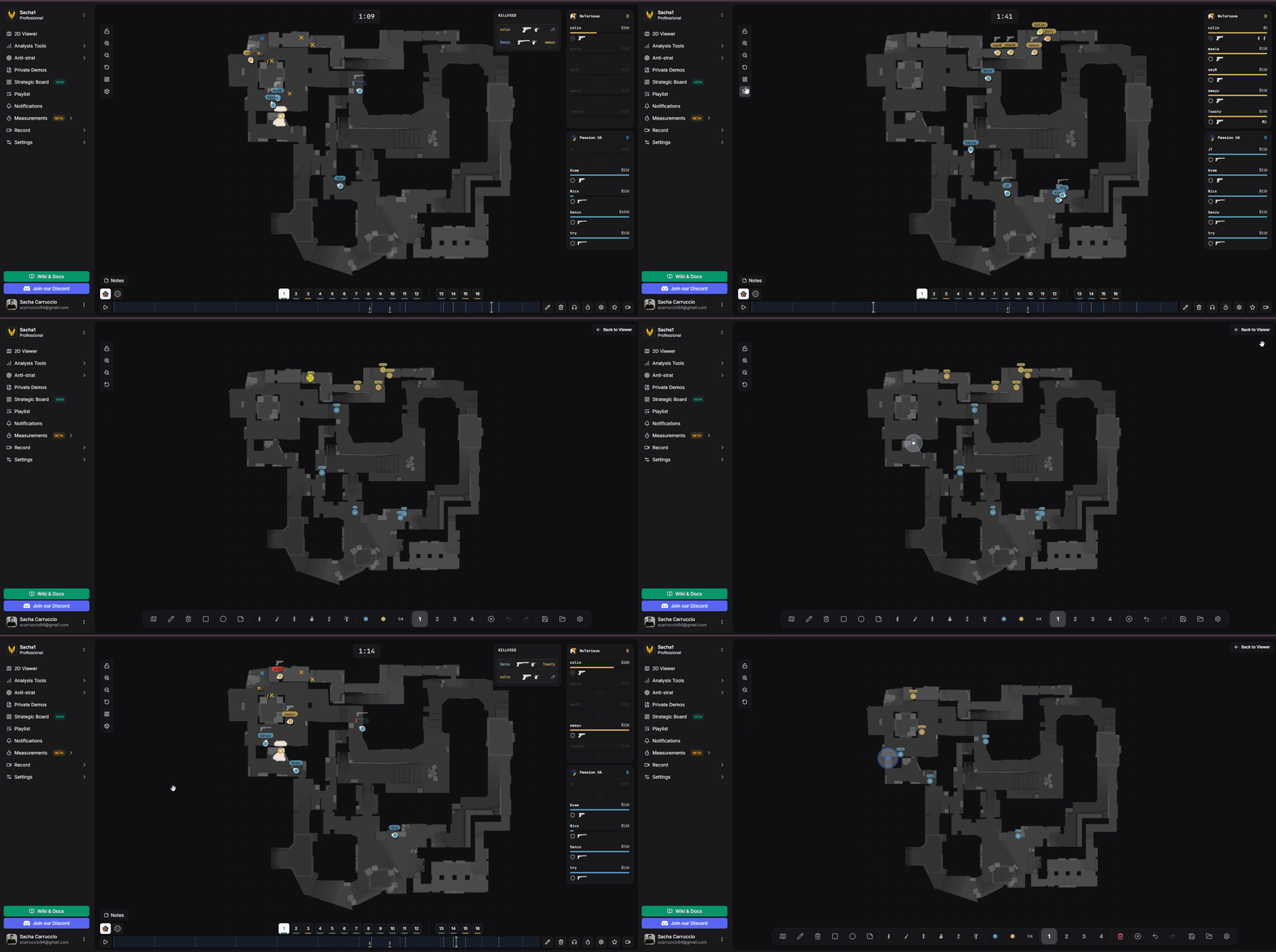
Opening the Strategic Board from the 2D viewer
Click the cube icon to switch the viewer into 3D mode. Click again to return to the top-down 2D view. Available on all paid plans.
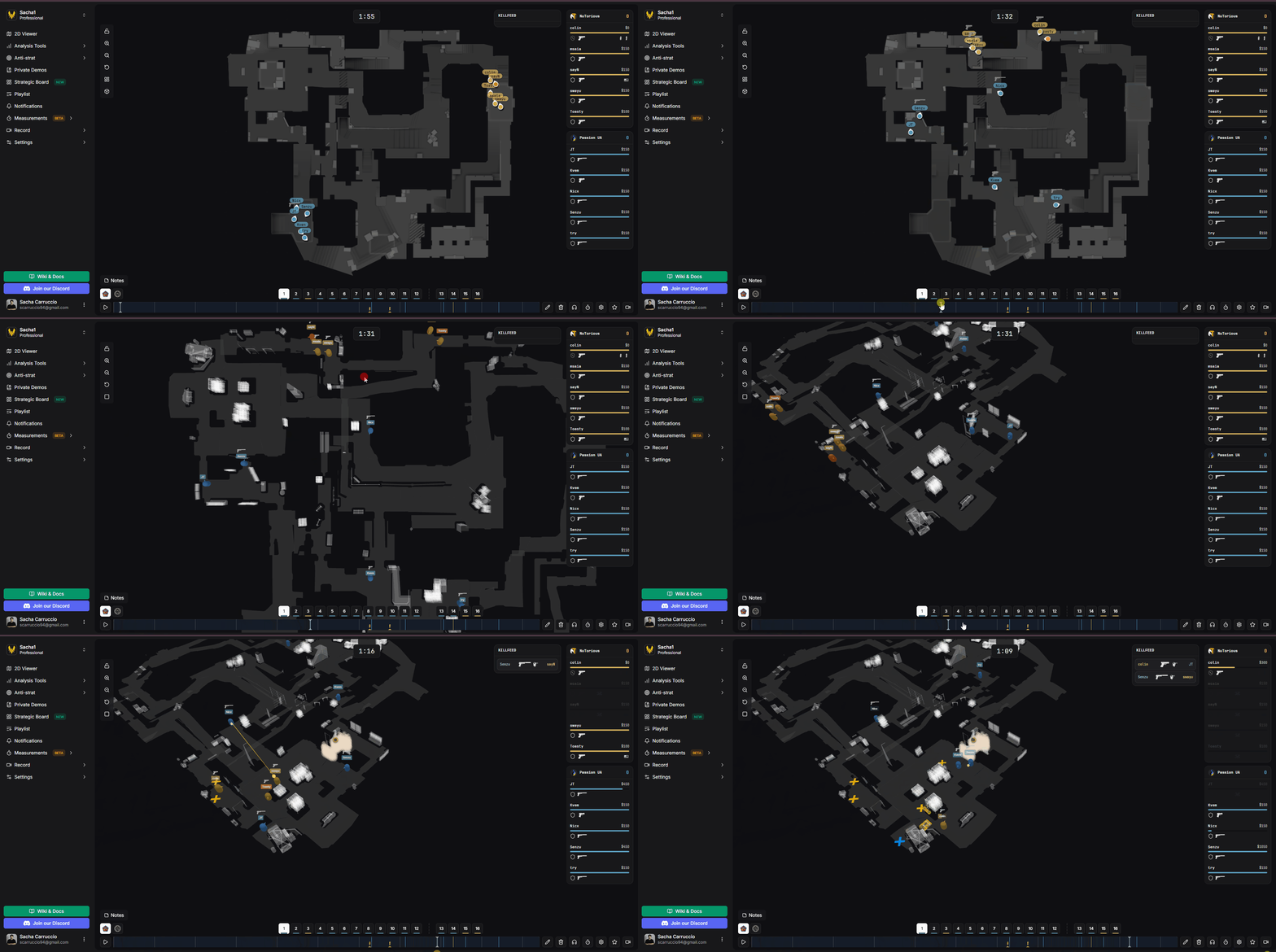
Switching from 2D to 3D playback
Switching between 2D and 3D — or hopping into the Tactical Board — preserves your filters, the active round, the playback position, and any drawings, so you don't have to set anything up again when you come back.
On the right side of the viewer, you'll see the HUD (Heads-Up Display) showing player information, equipment, and round status for both teams.
If you prefer a different layout, you can switch to the classic HUD style through the settings button in the toolbox. This gives you a more traditional scoreboard view.
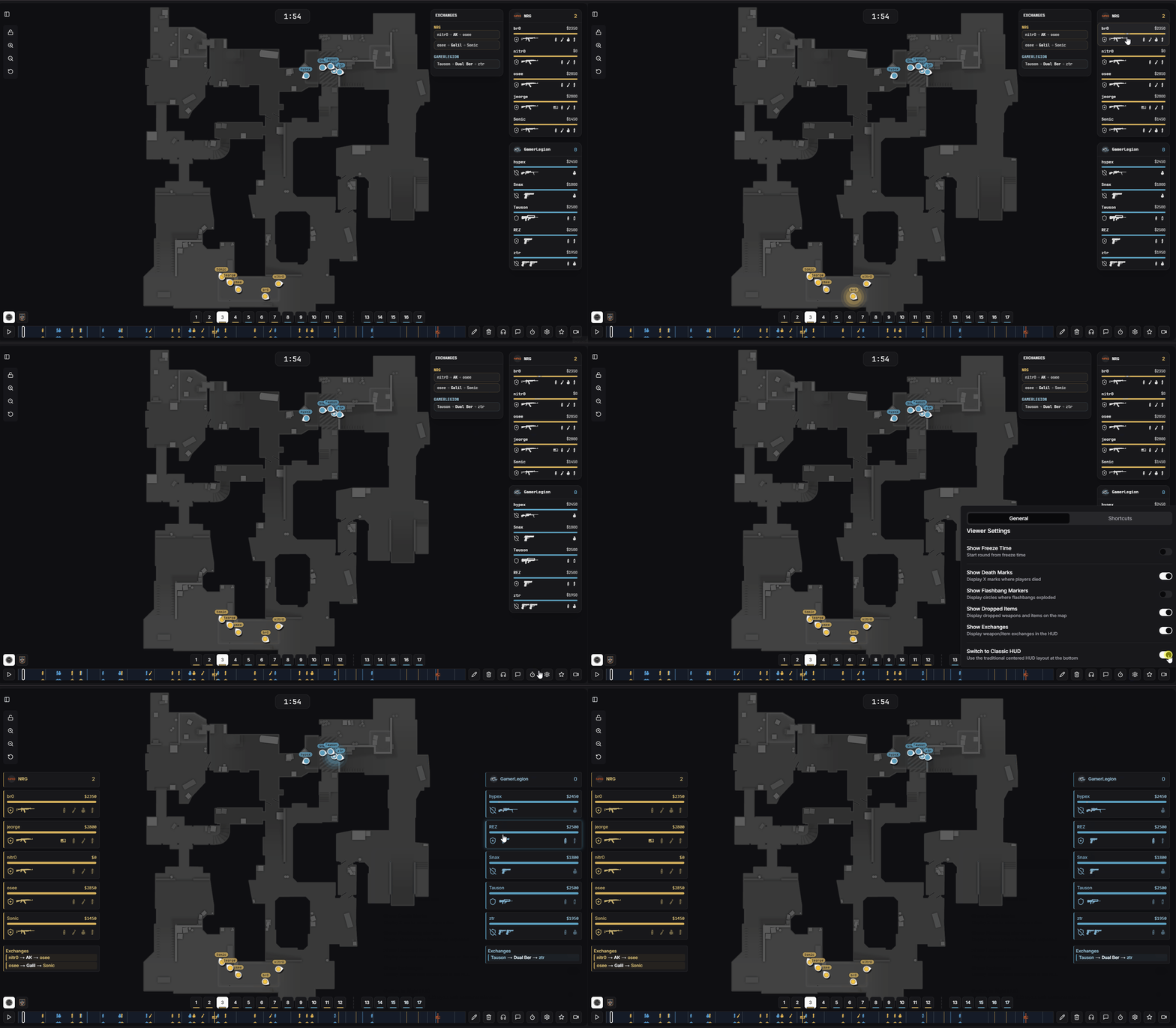
HUD display options - modern and classic styles
One of the most useful features for practicing setups is the ability to copy exact positions from the demo. Click on the base of any grenade or on a player's name in the HUD to copy their position to your clipboard.
setpos -329.10 -983.63 87.28; setang 0.83 67.38 0Paste this command directly into the CS2 console to teleport to that exact position and view angle. This is perfect for practicing grenade lineups or studying player positioning.
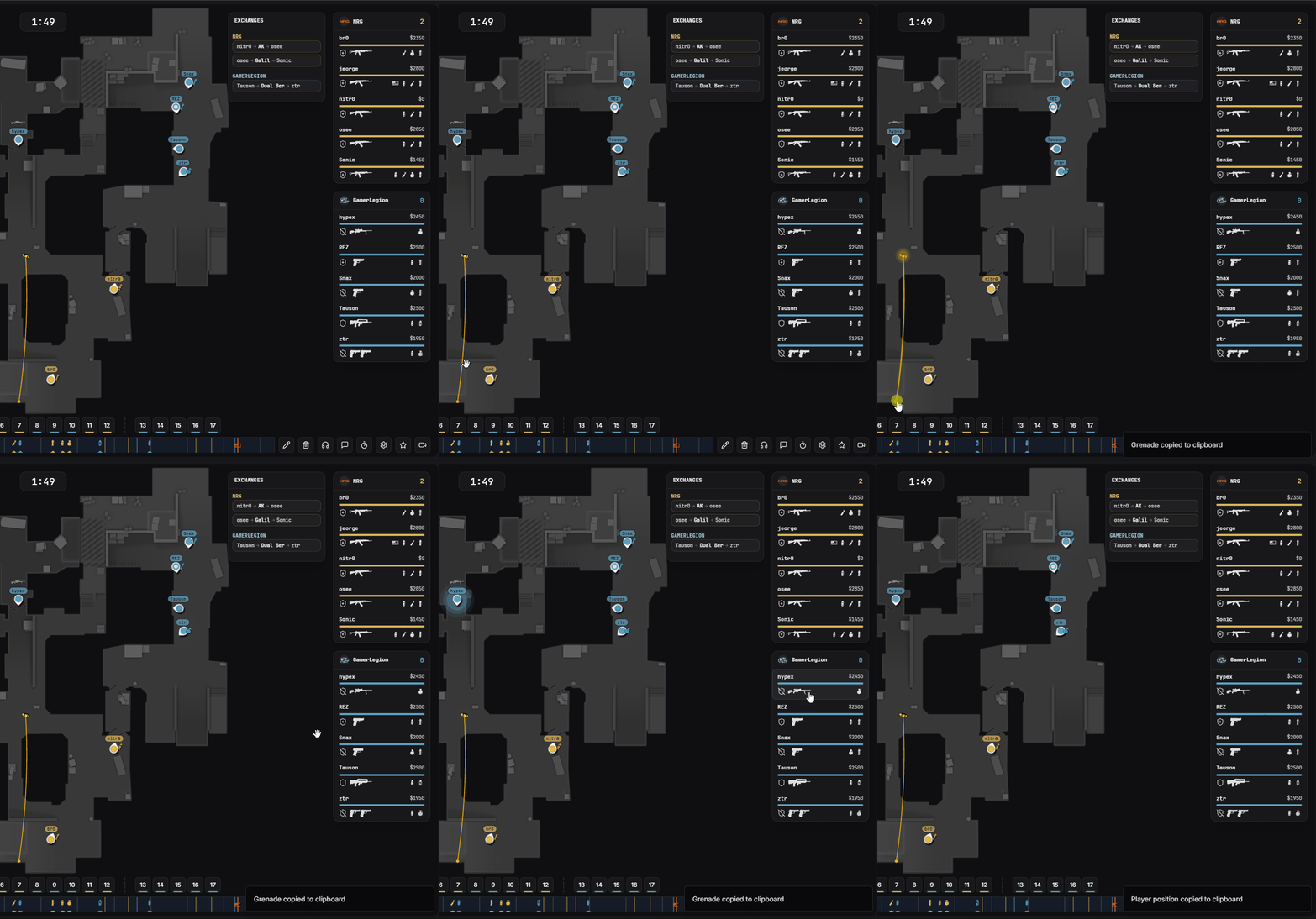
Copying positions from grenades and players
The 2D viewer accurately reproduces utility effects as they appeared in the actual match:
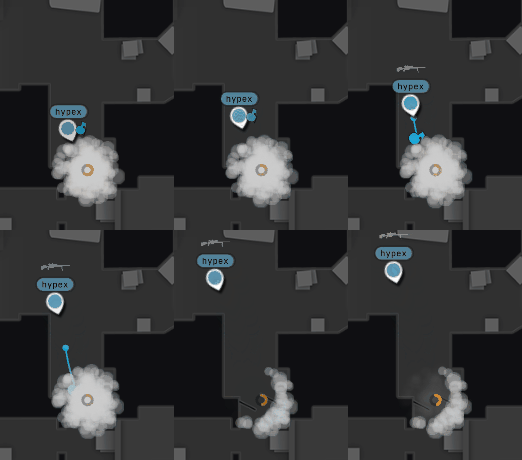
Smoke grenades reacting to HE grenades
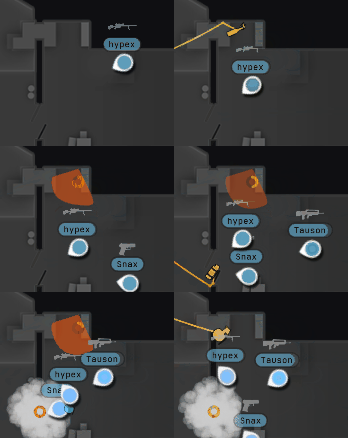
Molotov spread visualization
The settings menu offers several display options to customize your viewing experience:
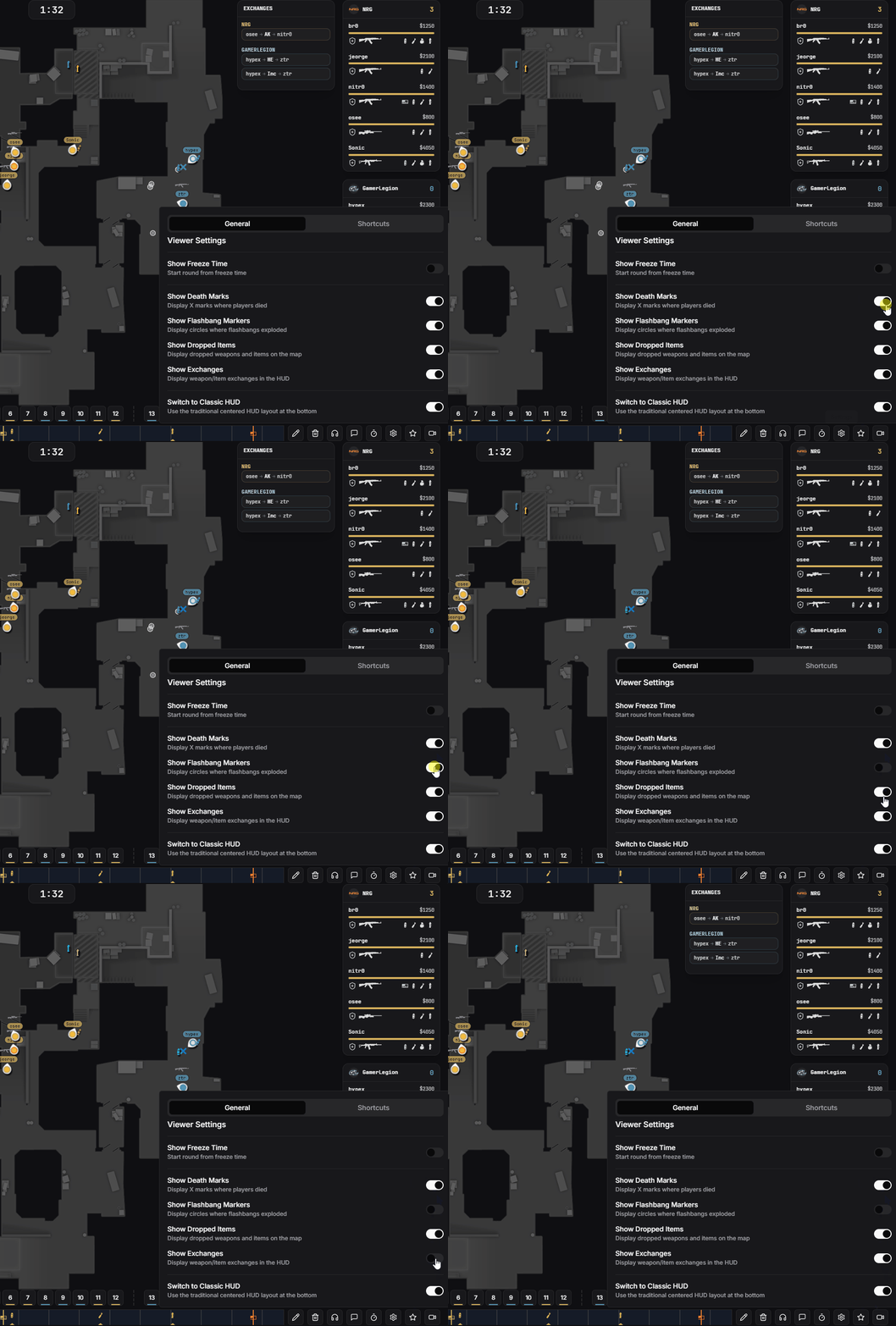
Settings menu with display options
The toolbox at the bottom of the viewer contains all the analysis tools you need. Each feature will be covered in detail in dedicated articles:
Annotate the map with arrows, circles, and freehand drawings
Sync voice comms for private demos or linked recordings
Add timestamped notes to rounds for later reference
Measure player reaction times in specific situations
Configure display options and view keyboard shortcuts
Save rounds to playlists for organized analysis
Record rounds from public demos for offline viewing
Each of these tools is covered in detail in their respective wiki articles. Explore the sidebar to learn more about specific features.