Was this helpful?
Join our Discord community to ask questions, give feedback, or suggest improvements.
Join Discord[ RELATED ]
Join our Discord community to ask questions, give feedback, or suggest improvements.
Join DiscordUpload and analyze your own demos from any platform. Private demos give you the same powerful analysis tools as public matches, with additional features for team collaboration.
Demos recorded directly from CS2 using the 'record demoname' command. While the .dem file is locked to the recording player's perspective, uploading to Private Demos unlocks the full 2D view of all players.
Server-side recordings with all player perspectives, available from matchmaking platforms (FACEIT, Gamersclub) and tournament platforms (HLTV)
Demos come in different formats depending on the platform. Some require extraction before uploading.
HLTV demos come compressed in .rar archives. Extract the .dem files using WinRAR or 7-Zip before uploading.
FACEIT demos use .zts compression. Rename to .zip and extract, or use 7-Zip to decompress directly.
Some platforms provide uncompressed .dem files that can be uploaded directly without extraction.
Always extract demo files before uploading. The upload system expects .dem files, not compressed archives.
Use the Upload Demo button to select files from your computer. The system automatically processes and categorizes your uploads.
The system automatically detects whether the demo is a POV or GOTV recording
Select and upload multiple demo files at once for batch processing
After upload, demos are processed to extract all events, positions, and statistics. This takes a few minutes.
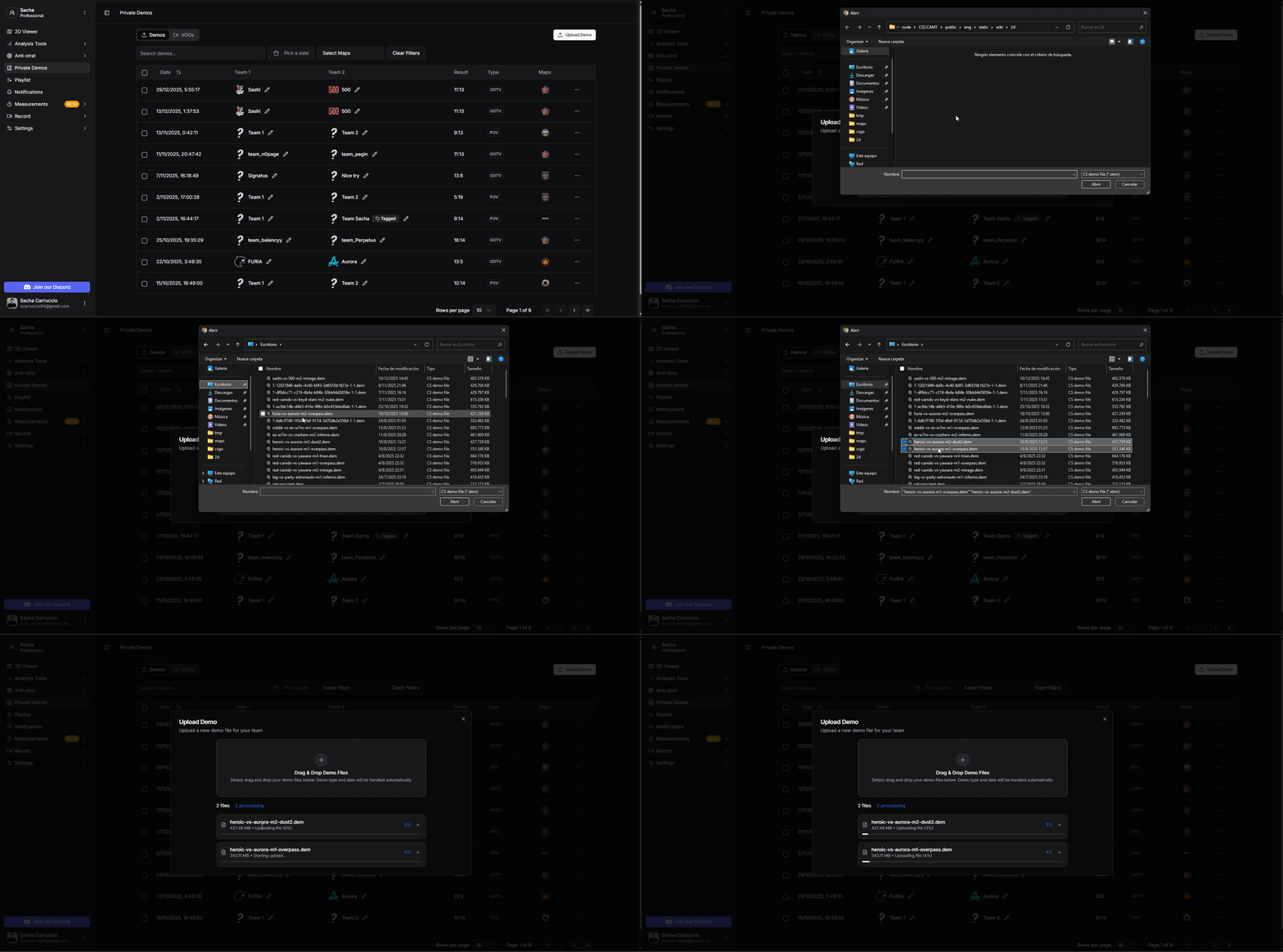
Uploading demo files
All demos you upload are automatically shared with your team members. This allows everyone to access the same analysis materials.
Team members can view, analyze, and add notes to shared demos. This makes collaborative preparation and review sessions seamless.
If your team is listed on HLTV and you want to sync audio with demos that are already in the system, you can link your HLTV team to your CS2.CAM team.
Go to Manage Teams in Settings to link your HLTV team profile.
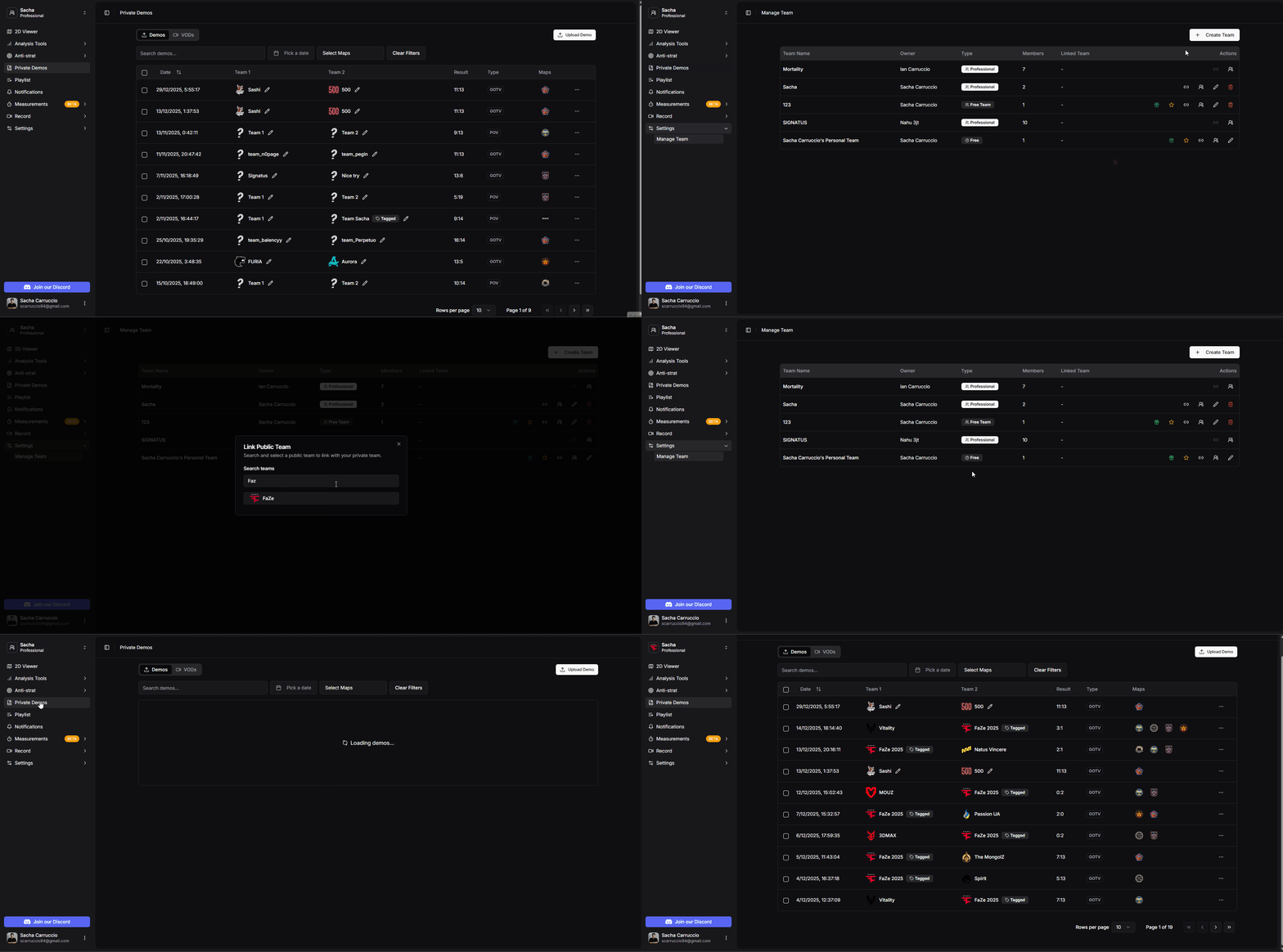
Linking HLTV team to CS2.CAM
Keep your demo library organized by deleting demos you no longer need.
Click the three-dot menu on any demo to delete it individually
Select multiple demos using checkboxes and delete them all at once
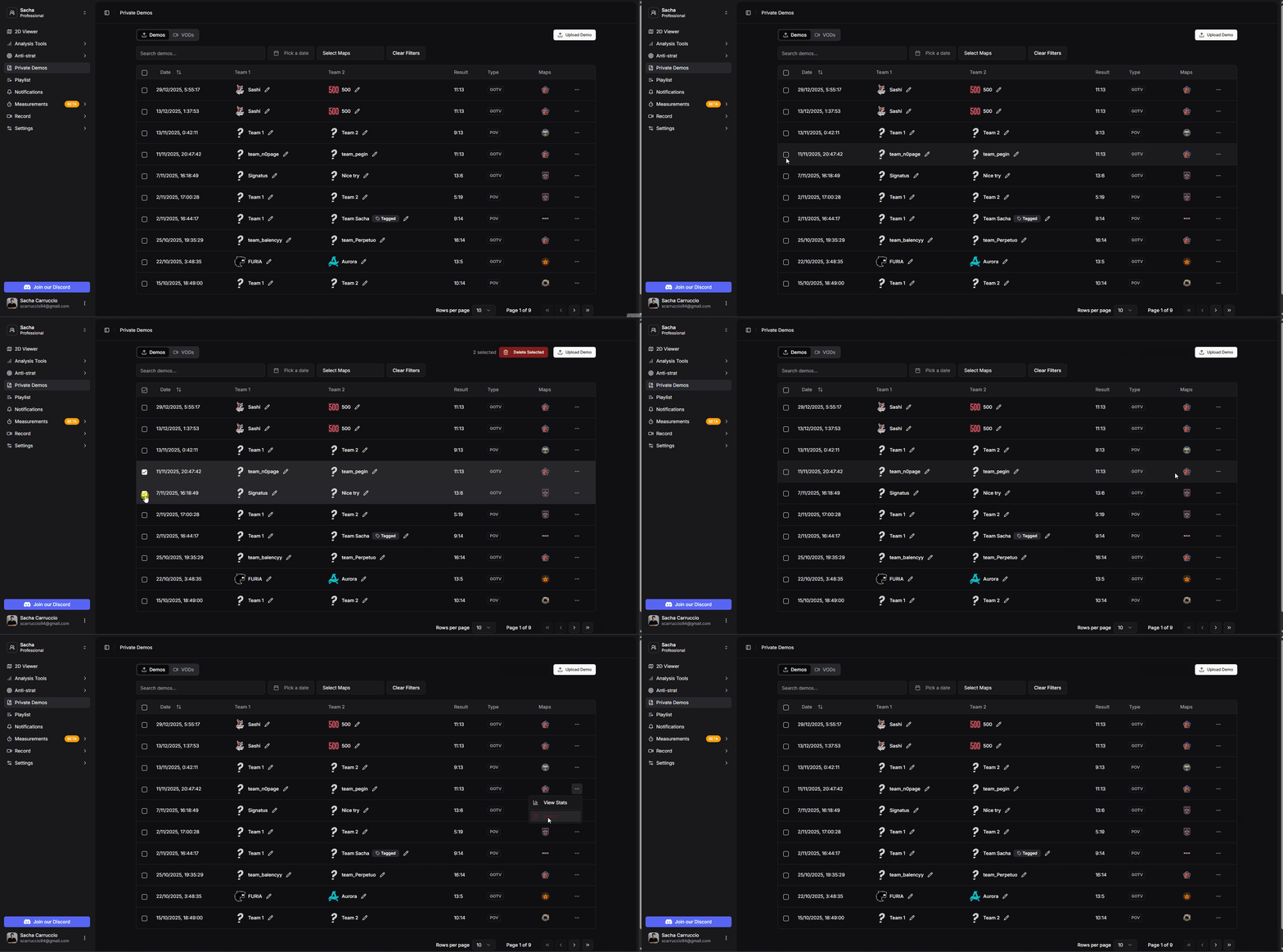
Deleting demos
Use the pencil icon to tag demos. When you tag a demo, the system finds all demos with the exact same roster of players and applies the same tag to all of them.
This is especially useful for anti-strat preparation against teams not on HLTV. Tag all their demos with the team name and filter by tag to see all their matches together.
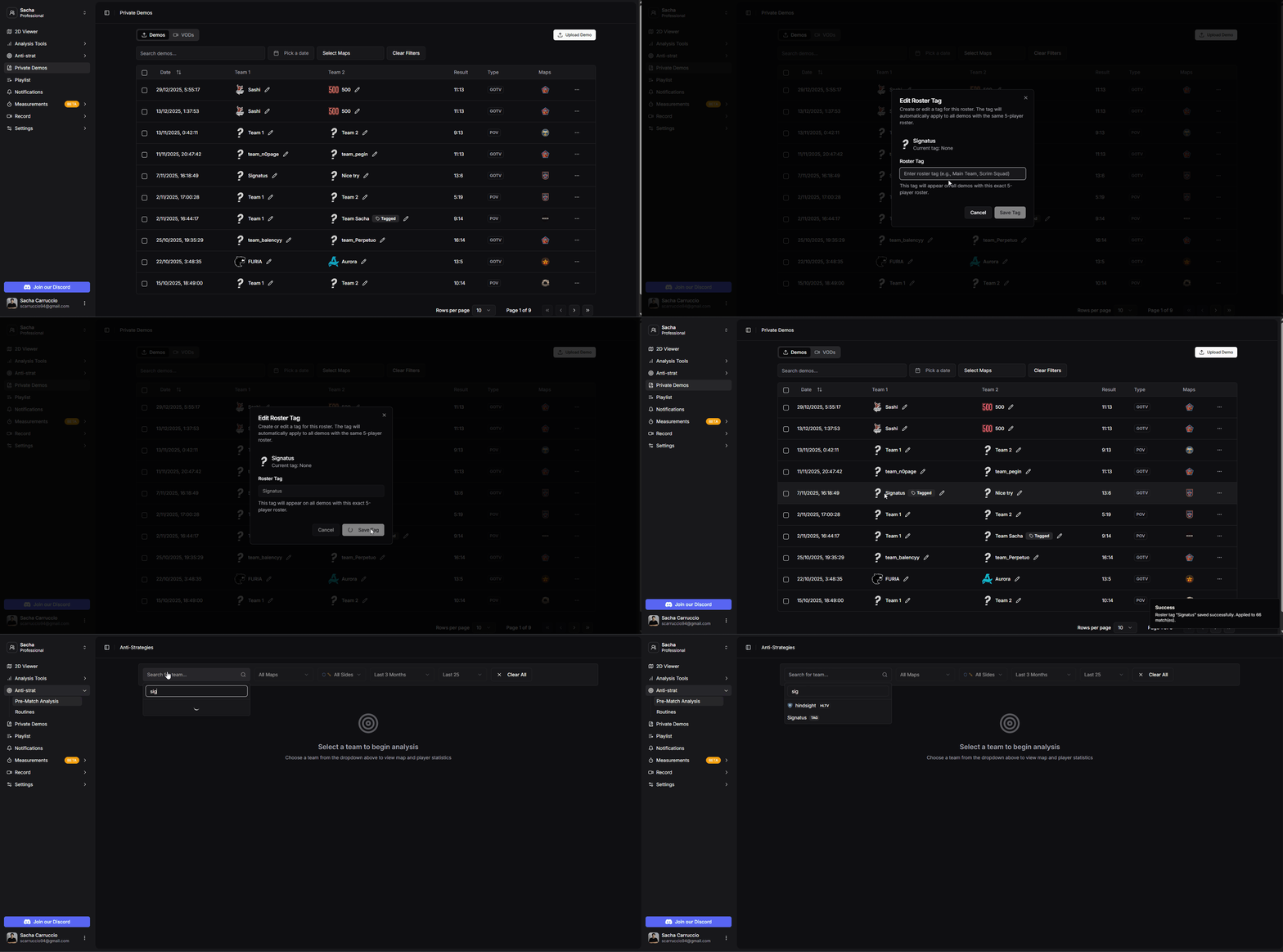
Tagging demos for organization
Private demos generate the same comprehensive statistics as public matches.
Full match statistics including economy, round outcomes, and performance metrics
Our Machine Learning model analyzes player behavior to detect roles and positions
Access the full statistics panel to view detailed player and team performance data
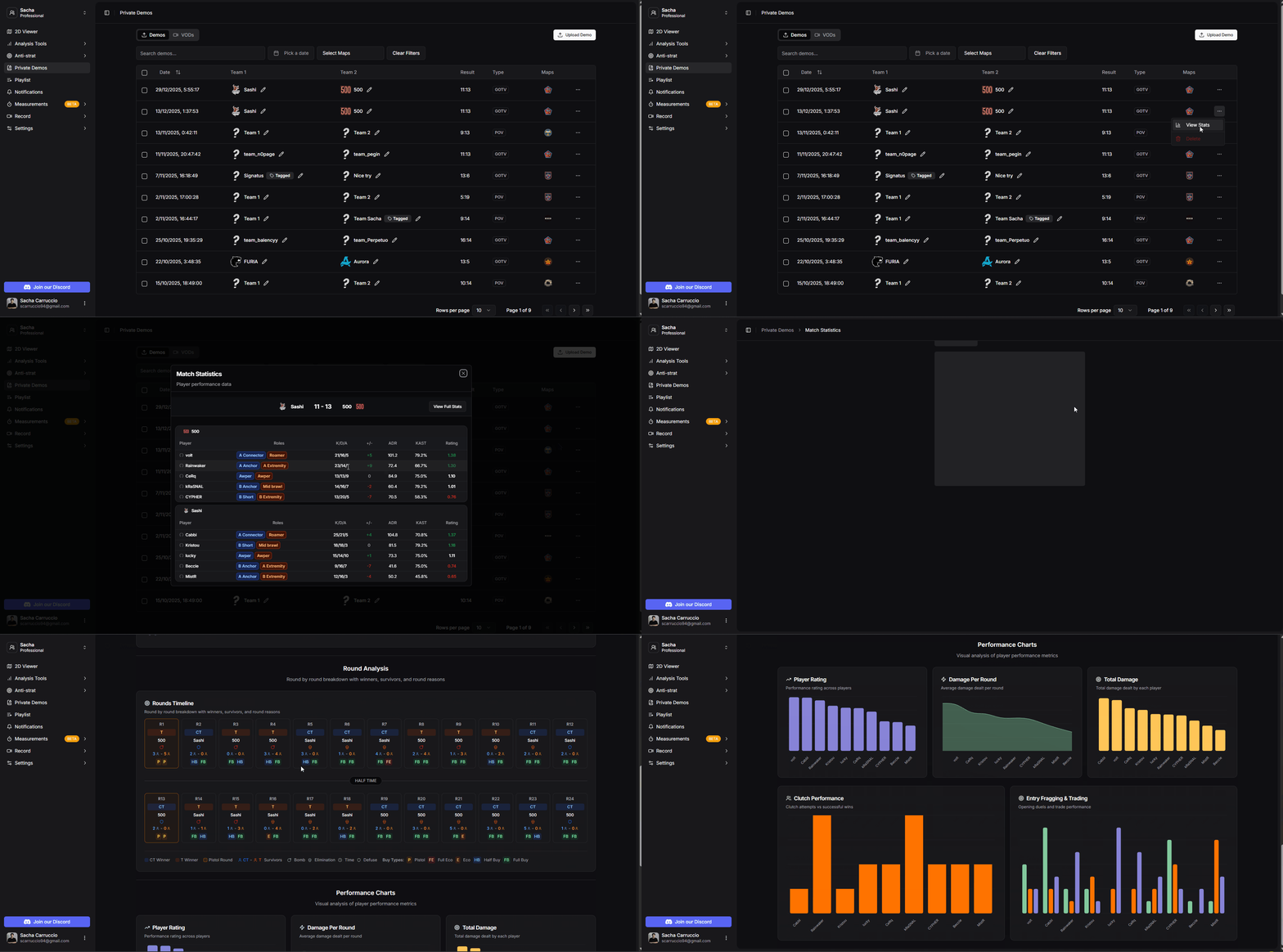
Viewing statistics for private demos
The VODs section stores video content that can be synchronized with your demos or watched independently.
Automatically saved team recordings showing each player's POV during scrims or matches
Link YouTube videos to use CS2.CAM tools like drawing and notes while watching
You can watch VODs on their own without a demo, or synchronize them with the 2D viewer for side-by-side analysis.
For more information about team recordings, see the Team Recording
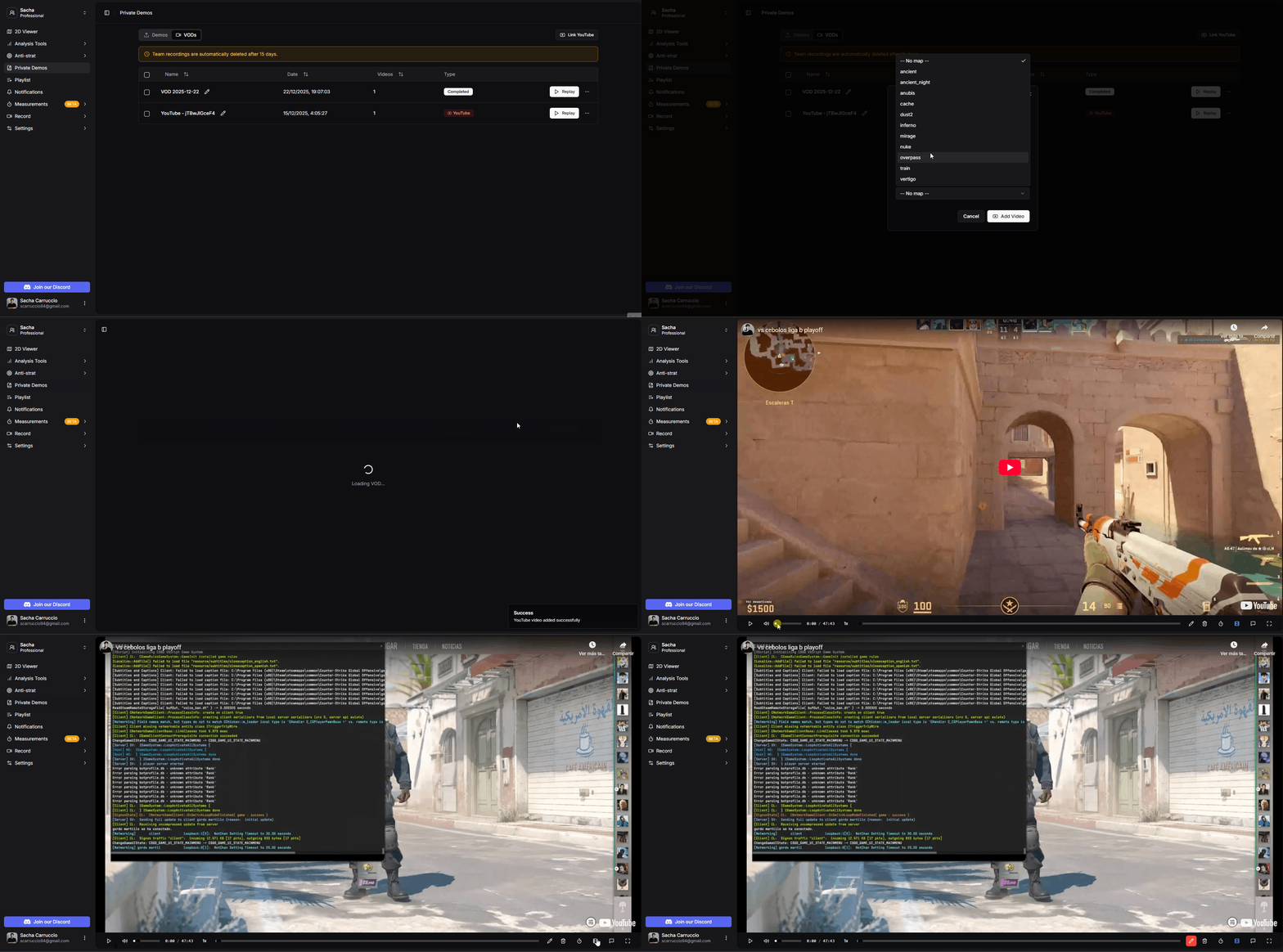
Linking YouTube VODs
Private demos have access to all the same analysis tools as public demos, plus additional synchronization features.
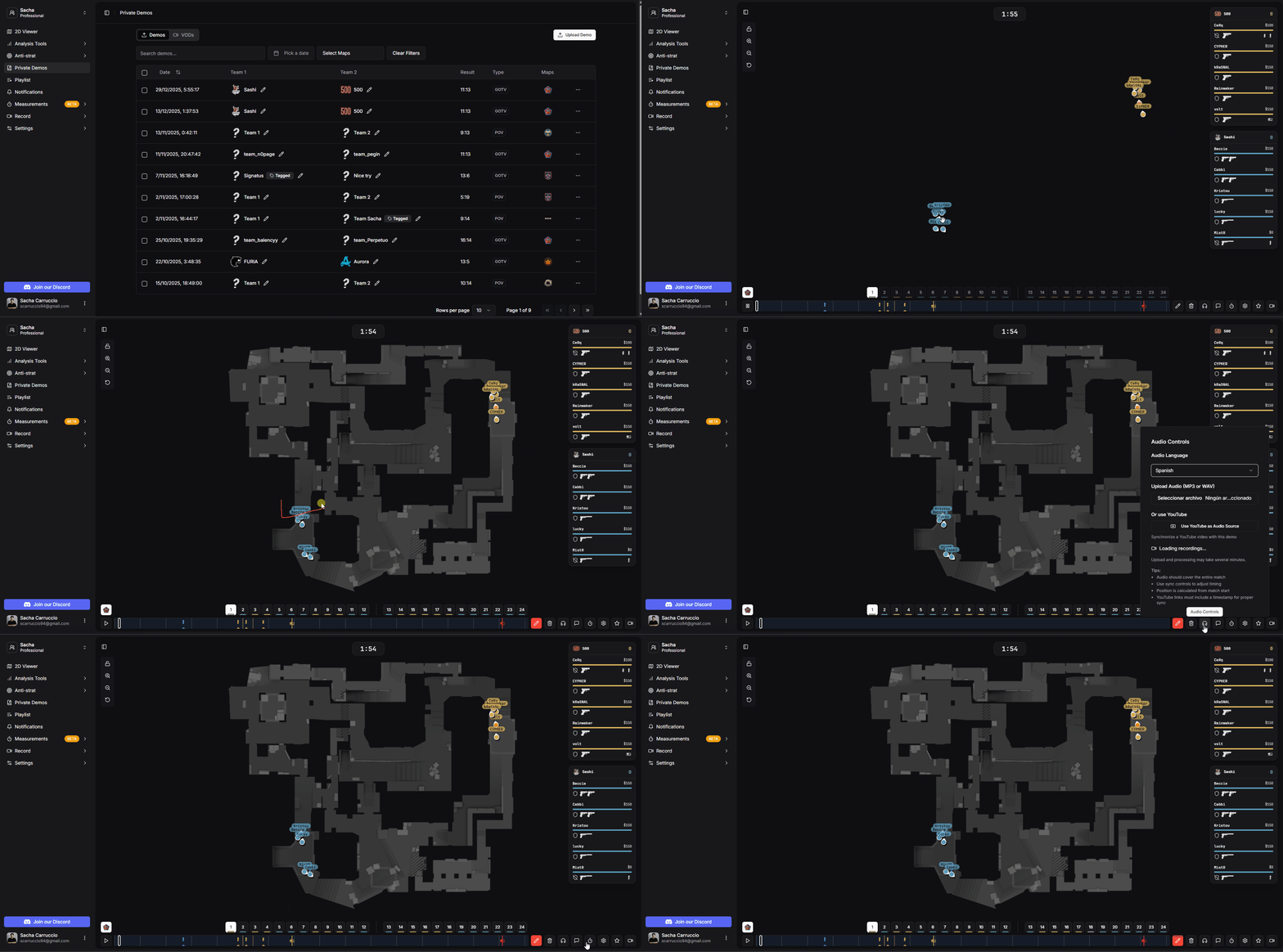
Toolbox with all analysis tools available for private demos
Synchronize team voice comms with demo playback to hear callouts in context
Sync YouTube VODs with demo playback for side-by-side analysis
Sync team recordings to see each player's POV synchronized with the 2D viewer
Learn more about audio synchronization in the Voice Comms Sync