Was this helpful?
Join our Discord community to ask questions, give feedback, or suggest improvements.
Join Discord[ RELATED ]
Join our Discord community to ask questions, give feedback, or suggest improvements.
Join DiscordOnce you've connected your FACEIT account, your matches will be available in the Private Demos section. This guide will walk you through accessing, processing, and watching your FACEIT demos.
If you haven't set up the integration yet, please visit the FACEIT Integration guide
After linking your FACEIT account, you can access your matches from the Private Demos section:
Navigate to Private Demos from the sidebar. At the top you'll see 3 tabs - click on the one that says 'FACEIT' to view your FACEIT matches.
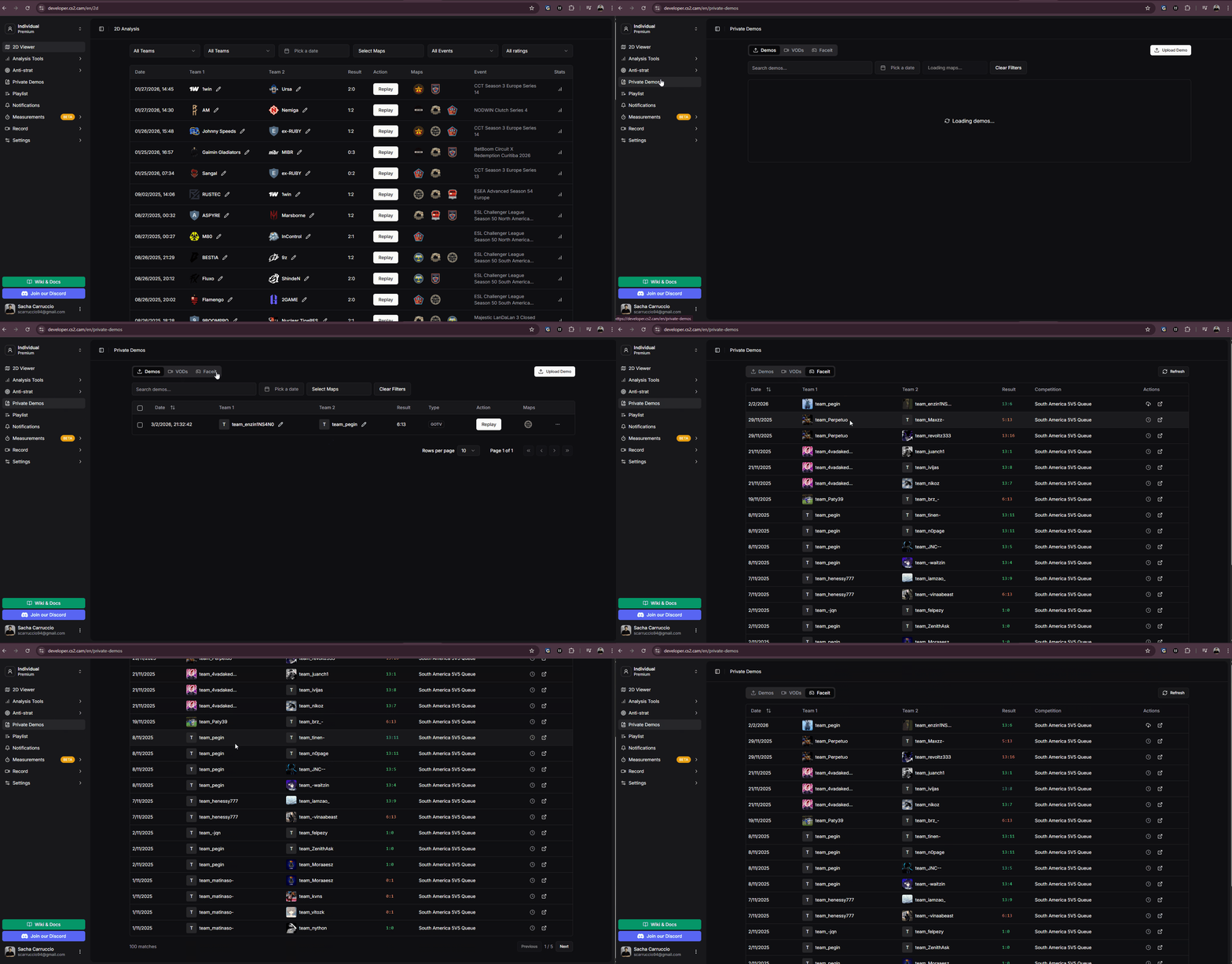
Accessing FACEIT tab in Private Demos
Your FACEIT matches will appear in a list. Before you can watch a demo in the 2D viewer, it needs to be processed:
From the match list, select the match you want to analyze and click the cloud button to start processing the demo in the background.
Processing typically takes about 5 minutes. You can continue using CS2.CAM while the demo is being processed.
Once the demo has finished processing, you can watch it in the 2D viewer:
After processing completes, a play button will appear instead of the cloud icon. Click it to watch the demo in the 2D viewer. The demo will also appear in the demos section listed like any other private demo.
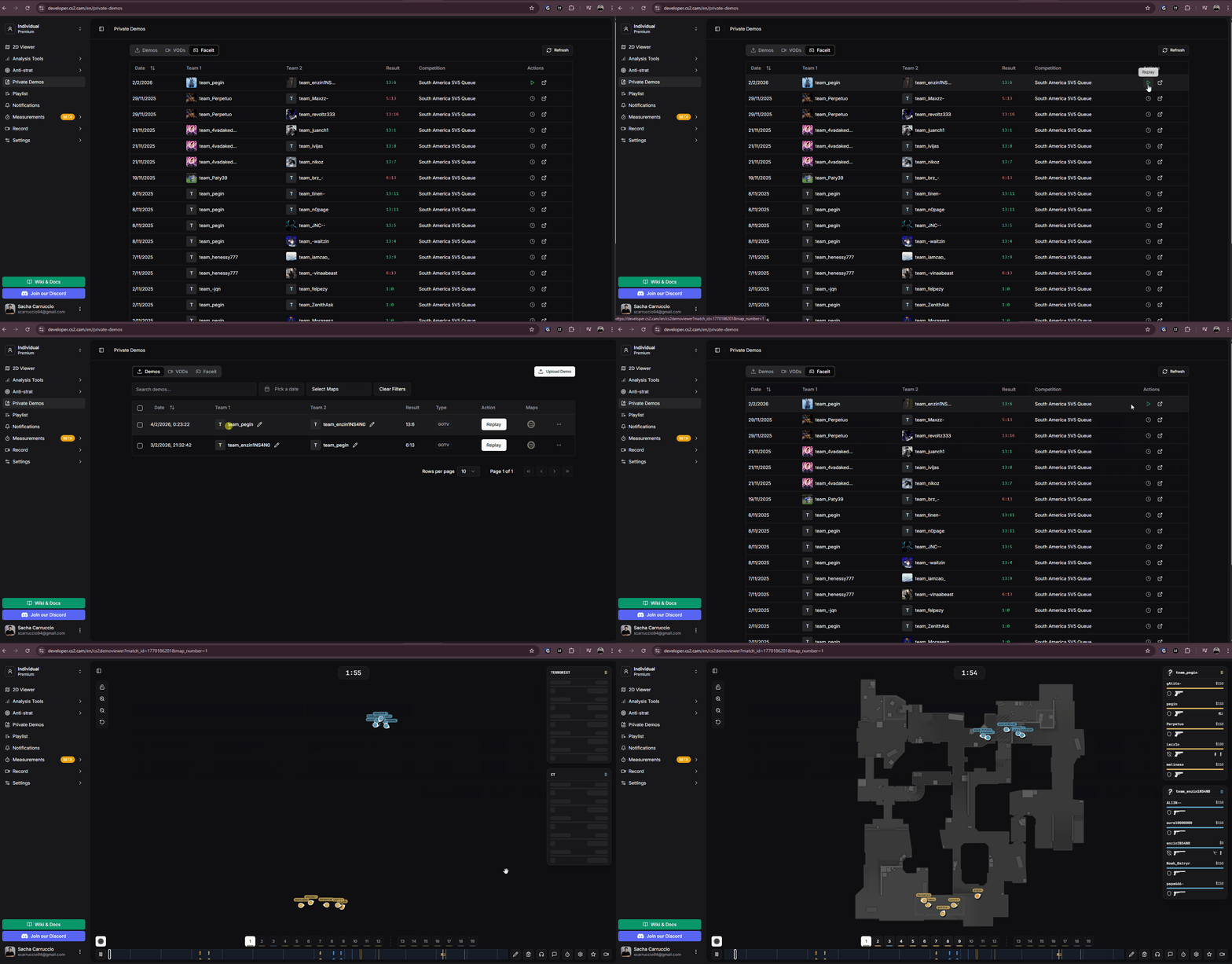
Watching processed FACEIT demos